 TileMark
Settings
Everything you can set in TileMark is in ⚙ Settings (top right). Each section is a card: click its title to open it. Only one card is open at a time, and a closed card shows a short status, so you often don't need to open it at all.
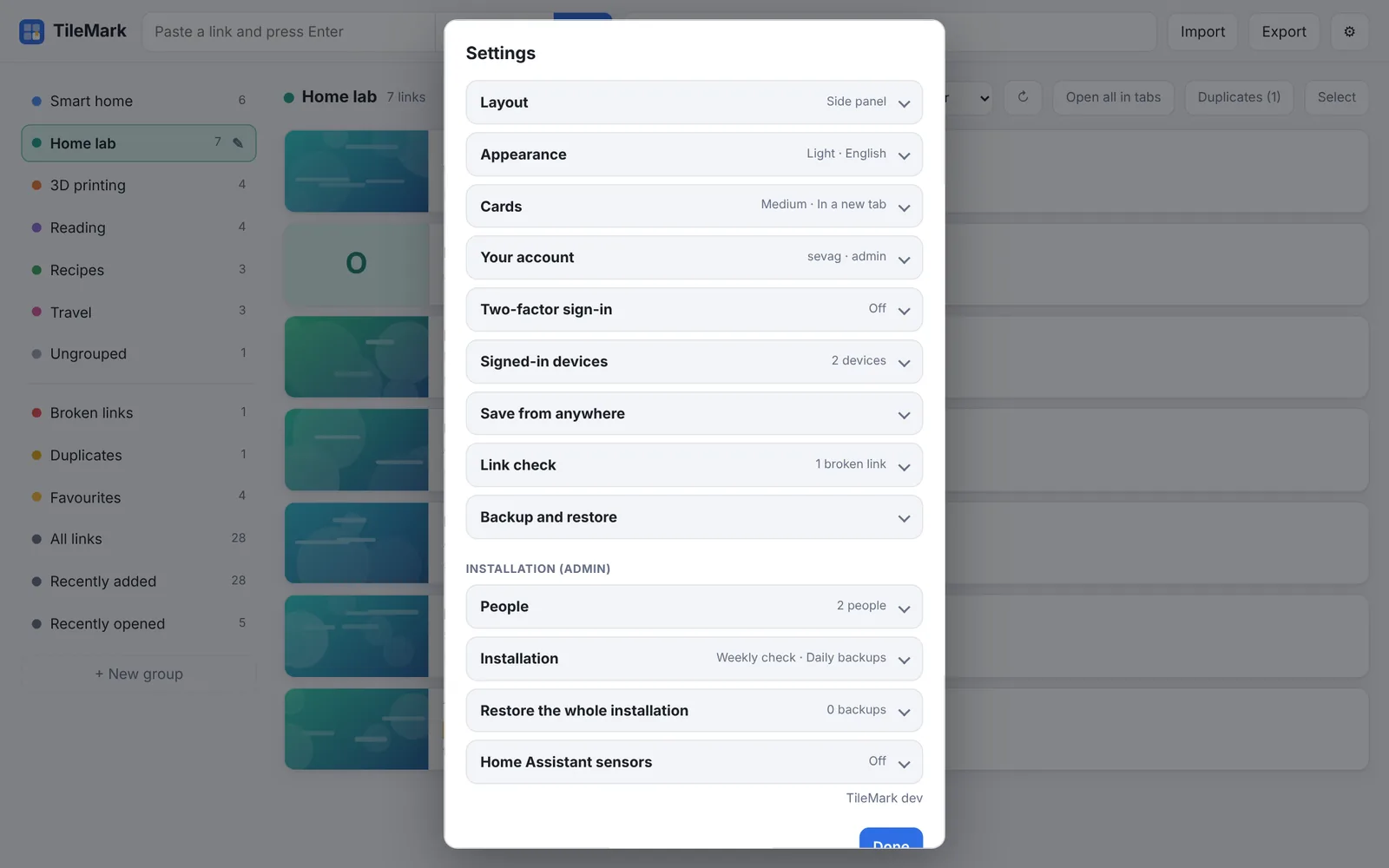
Your own choices (layout, appearance, language, cards) are saved with your account, so every device you use looks the same. Admin cards are grouped at the bottom under Installation (admin); other people don't see them.
On this page: Layout · Appearance · Cards · Your account · Two-factor sign-in · Signed-in devices · Save from anywhere · Link check · Backup and restore · People · Installation · Restore the whole installation · Home Assistant sensors
Layout
| Option | What it does |
|---|---|
| Side panel | Groups in a column on the left; click one to list its links beside it. Good with many groups. |
| Sections | All groups on one page as collapsible sections with large picture cards. |
More in Links and groups.
Appearance
| Option | What it does |
|---|---|
| Follow my device / Light / Dark | The colour scheme. Follow my device switches with your computer's or phone's dark mode. |
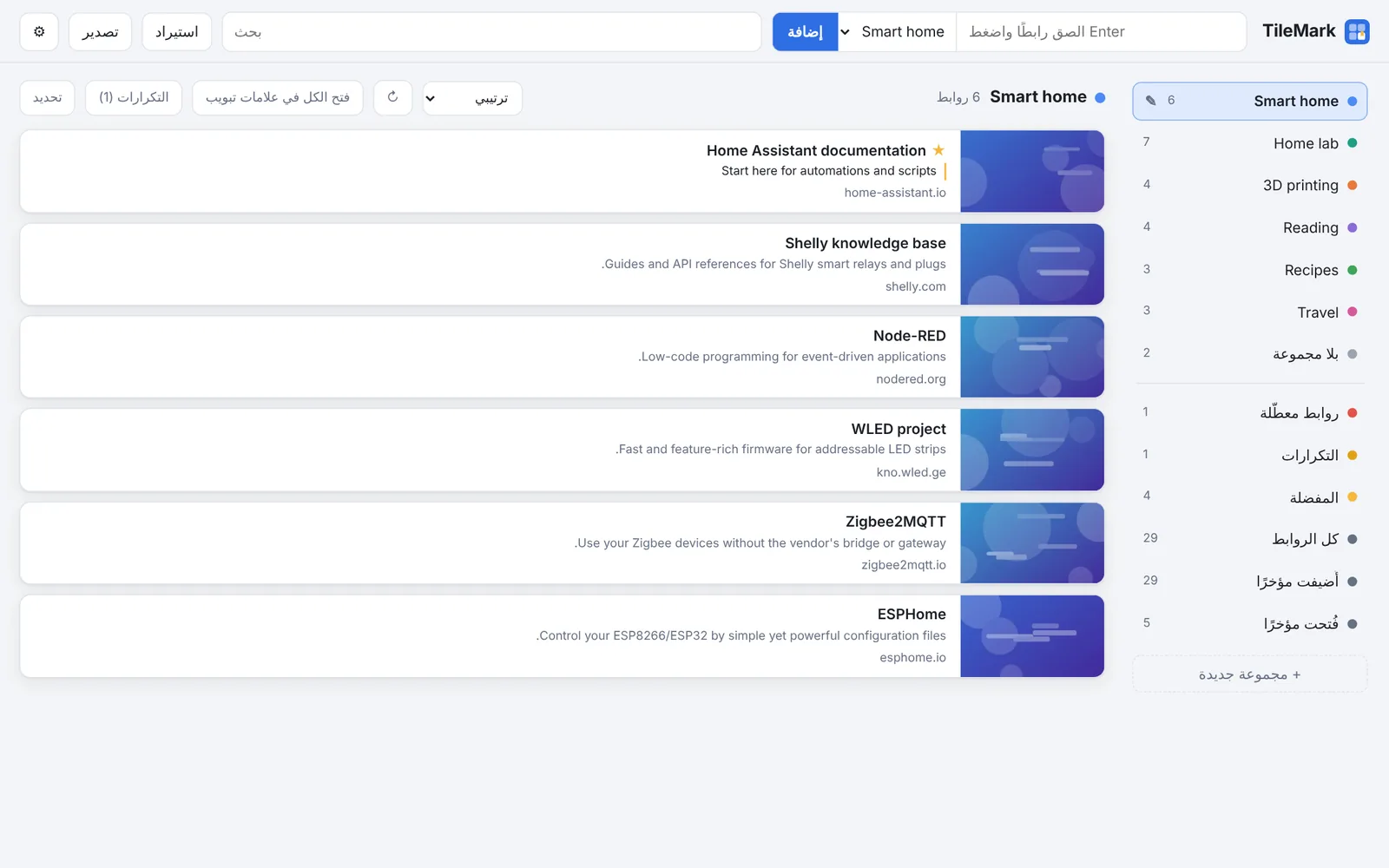
| Language | Follow my browser (the default), English, Nederlands, Deutsch or العربية. Arabic is shown right to left. The page reloads in the chosen language. |
Cards
| Option | What it does |
|---|---|
| Picture size | Small, Medium or Large pictures on the cards. |
| Clicking a link opens it | In a new tab (the default) or In this tab. |
| New links go to | The group that new links go to when you aren't looking at a group. No group leaves them ungrouped. |
The keyboard shortcuts are listed here too: / search, n add a link, Esc clear the search or leave a field.
Your account
| Option | What it does |
|---|---|
| Username | Your name for signing in. |
| New password | Leave empty to keep your current one. At least 8 characters. A new password signs out your other devices. |
| Current password | Needed to save any change. |
| Save account | Saves the changes above. |
In the Home Assistant app you are signed in through Home Assistant; set a password here only if you also want to use TileMark's own address.
Two-factor sign-in
Asks for a code from an authenticator app after your password. Shows On or Off in the card's title.
| Button | What it does |
|---|---|
| Turn on | Shows a QR code to scan with your authenticator app; confirm with one code. You then get ten recovery codes. |
| New recovery codes | Replaces your recovery codes. Asks for your password. |
| Turn off | Switches it off. Asks for your password. |
Step by step, and what to do when you lose your phone: Accounts and security. Not shown in the Home Assistant sidebar.
Signed-in devices
Lists every browser signed in to your account: browser and system, address, when it was last active and when it signed in.
| Button | What it does |
|---|---|
| Sign out | Signs that device out. |
| Sign out all other devices | Signs out every device except this one. |
Save from anywhere
| Part | What it does |
|---|---|
| 🔖 Save to TileMark | A button to drag to your browser's favorites bar. Click it on any page to save that page. |
| Phone | How to install TileMark as an app on your phone (needs HTTPS). |
| Create API key | Makes a key for scripts and Shortcuts. It is shown once. |
| Replace API key | Makes a new key; the old one stops working. |
| Remove API key | Switches the key off. |
Details and examples: Save from anywhere.
Link check
| Part | What it does |
|---|---|
| Status line | When the last check ran, and how many of your links are broken. |
| Check now | Checks your links now, in the background. For an admin: the links of every account, the same as the weekly check. |
| Refresh all titles and pictures | Fetches the title and picture of all your links again. |
More in Broken links.
Backup and restore
| Option | What it does |
|---|---|
| Download backup | Downloads one file with all your links, groups and pictures, encrypted with your login password. |
| More options → A different password instead | Encrypts with a password of your choice instead, for example to give the file to someone. Can't be recovered if forgotten. |
| More options → No encryption | A plain zip file that anyone can open. |
| Restore: choose file | The backup file to restore (.tmk or .zip; LinkBoard backups work too). |
| Password | Your login password (from the day of the backup, or today's), or the backup's own password. |
| Restore from backup | Replaces all your links and groups with those in the file, after you confirm. |
More in Backups.
Installation (admin)
Only admins see these cards. They affect every account.
People
| Part | What it does |
|---|---|
| The list | Everyone with an account, with their number of links, and whether they are admin or use two-factor sign-in. |
| New password | Sets a new password for that person and signs them out everywhere. |
| Make admin / Remove admin | Gives or takes admin rights. There is always at least one admin. |
| Turn off 2FA | Switches off their two-factor sign-in, for when they lost their phone. |
| Remove | Deletes the account with all its links, groups and pictures. Can't be undone. |
| Add a person | Username, first password (at least 8 characters) and Also an admin, then Add person. |
More in Accounts and security.
Installation
| Option | Default | What it does |
|---|---|---|
| Check everyone's links automatically once a week | On | The weekly link check for all accounts. |
| Keep a daily backup of the whole installation | On (off in Home Assistant) | Daily copies of everything in data/backups, the last 7 kept. The status line shows the last one. See Backups. |
| Fetch titles and pictures for local network addresses | Off | Lets TileMark visit addresses inside your network (192.168.x.x, nas.local …). Turn it on only if you trust everyone with an account. See Local addresses. |
Restore the whole installation
| Part | What it does |
|---|---|
| Encryption status | Whether the daily backups are encrypted (🔒 in the card's title). |
| Turn on encryption | Encrypts every new backup. First tells you which unencrypted backups will be deleted and asks you to confirm; then shows a recovery key once. |
| New recovery key | Replaces the recovery key. Asks for your password or the current recovery key. |
| Turn off encryption | New backups are no longer encrypted; the encrypted ones stay readable. |
| Recovery key → Get access again | Shown when your password doesn't open the backups (for example after a password reset). |
| The list | The daily backups and the safety copies made before a restore, newest first, with 🔒 on encrypted ones. |
| Download | Downloads that backup. |
| Restore | Puts every account back to that day. Type the date to confirm, and for an encrypted backup your password or the recovery key; a safety copy of now is made first. |
| Make a backup now | Makes a backup straight away. |
More in Backups.
Home Assistant sensors
| Option | What it does |
|---|---|
| Send to Home Assistant over MQTT | Shows TileMark in Home Assistant as a device with sensors. On by default in Home Assistant. |
| Device name in Home Assistant | The device's name. Empty uses the default. |
| Broker, Port, Username, Password | Your MQTT broker. In Home Assistant, leave the broker empty to use Home Assistant's own. |
| Encrypted connection (TLS) | For brokers that use TLS. |
| Discovery prefix | Leave at homeassistant unless you changed it in Home Assistant. |
| Save and connect | Saves and connects. The status line shows the result. |
| Device ID / New ID | Gives this installation a new device in Home Assistant, for when two TileMarks share one ID. |
More in Home Assistant sensors.
At the bottom of Settings: the version of TileMark you are running, Sign out (signs you out on this device; not shown in the Home Assistant sidebar, where Home Assistant's own sign-in applies) and Done.