 TileMark
Links and groups
Everything you do day to day happens on one page. This guide walks through it from top to bottom.
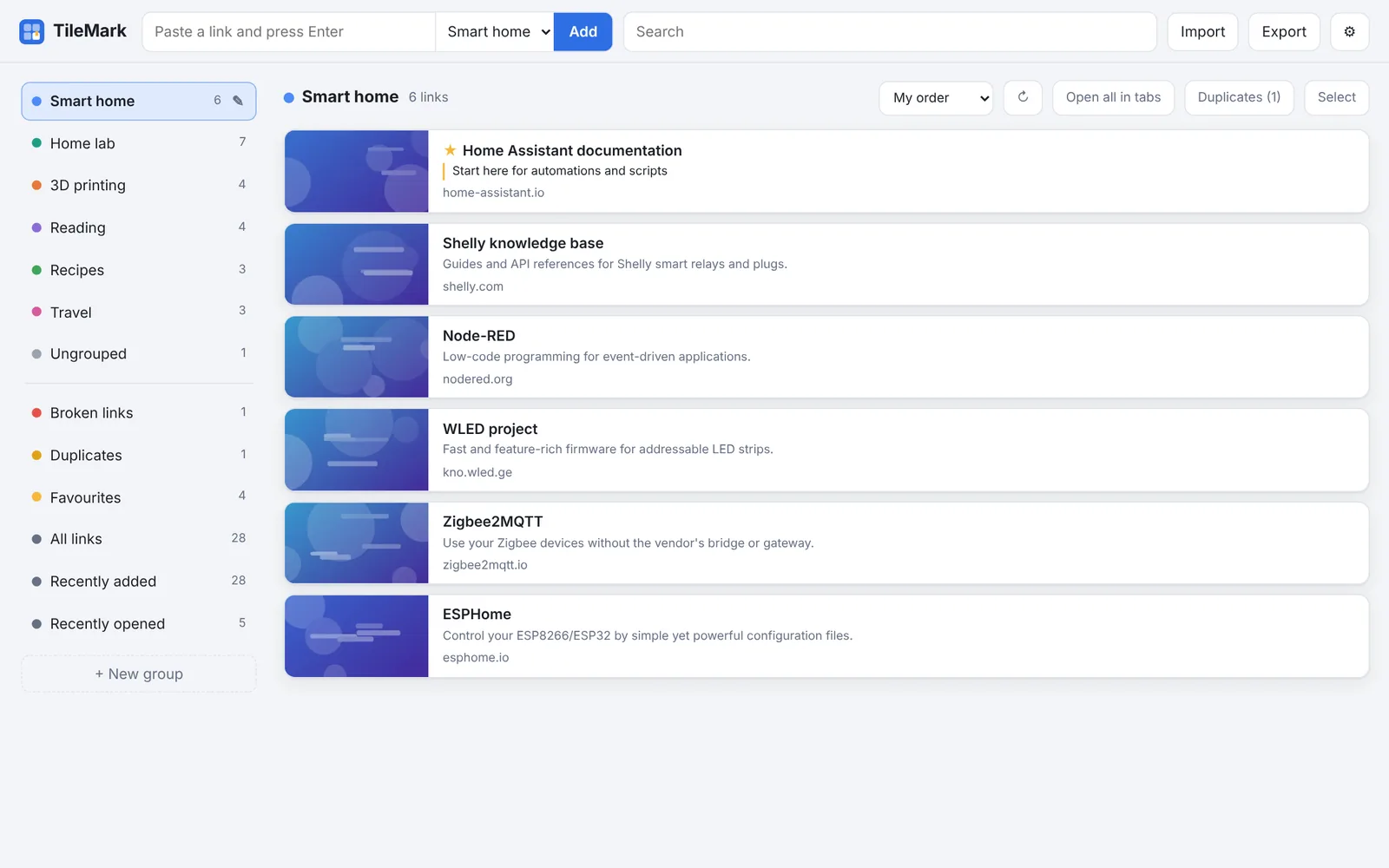
The top bar
| Part | What it does |
|---|---|
| TileMark (top left) | The version you are running is shown under the name. |
| Paste a link and press Enter | Saves a link. The list next to it chooses the group it goes to. |
| Add | Same as pressing Enter. |
| Search | Finds links by title, address, description, note or group name, across all your groups. |
| Import | Brings in browser bookmarks, a list of links or a TileMark file. See Import and export. |
| Export | Downloads your links as a TileMark file or a bookmarks file. |
| Light bulb | Opens this guide on the website. |
| ⚙ | Opens Settings. |
Saving a link
Paste an address into the field at the top and press Enter. The card appears at once; TileMark then fetches the page's title, a short description and a picture in the background, and the card fills in a moment later.
- Which group? The list next to the field. It starts on the group you are looking at, or on the group set under ⚙ Settings → Cards → New links go to.
- Several links at once: paste several lines into the field. TileMark opens the import window with them filled in.
- No
http://? Addresses typed without it gethttps://. Local ones (192.168.x.x,localhost,name.local) gethttp://. - Tracking removed: parameters that only track you (
utm_…,fbclid,gclid, YouTube's and Spotify'ssi…) are removed before saving. - Already saved? TileMark tells you where the link already is instead of saving it twice. See Duplicates.
- Saved somewhere else? Links you add with the browser button, from your phone or on another device show up when you come back to the TileMark tab, and otherwise within 5 minutes.
Where the picture comes from
TileMark uses the preview image a site publishes for sharing (the same one you see when you paste a link in a chat app). For YouTube, Vimeo and TikTok it asks their official embed service. If a site has no preview image, the site's icon is used, and otherwise a letter tile.
Pictures are stored on your server, so the page stays fast and keeps working when a site changes. You can always use your own picture instead; see Editing a link.
Sites that need you to sign in (Instagram, for example) and pages inside your own network often have no picture. For local pages, see Local addresses.
The card
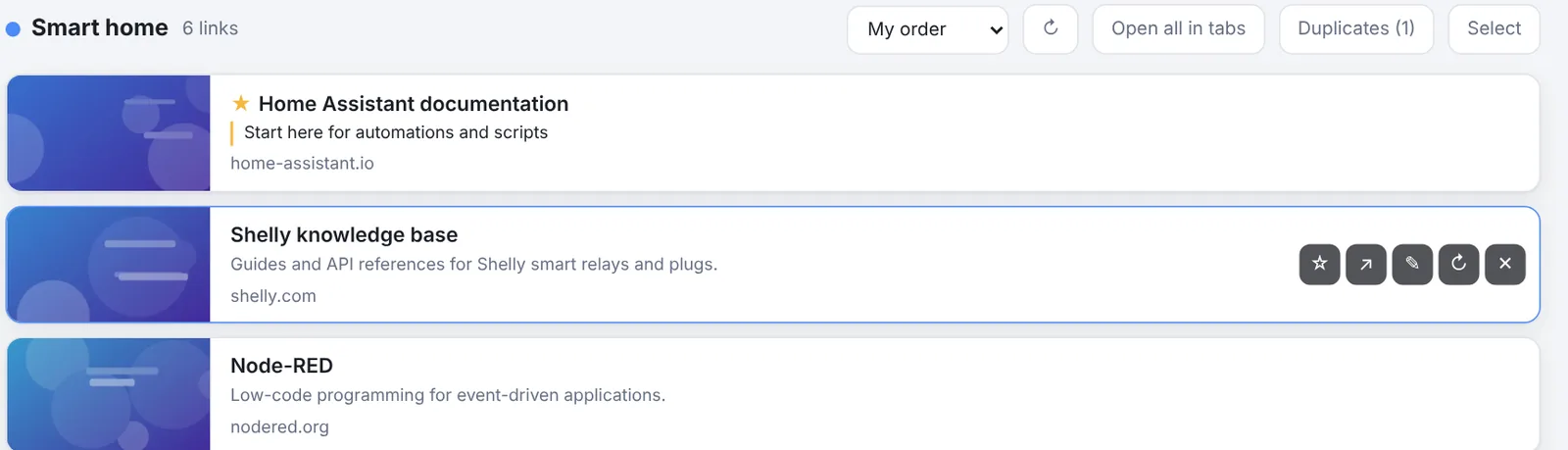
Click a card to open the link. Point at a card (on a phone they are always shown) to see its buttons:
| Button | What it does |
|---|---|
| ☆ / ★ | Favourite: keeps the link at the top of its group and in the Favourites list. |
| ↗ | Share: opens the phone's share menu, or copies the address where there is none. |
| ✎ | Edit the link (below). |
| ↻ | Fetch the title and picture again. |
| ✕ | Delete the link. |
A card can also show:
- a note (with a coloured line in front of it), if you added one;
- a Broken label, if the last link check could not reach it (see Broken links);
- the group's name, in lists that mix groups (All links, Favourites, search results).
Whether a click opens the link in a new tab or in the same tab is set in ⚙ Settings → Cards. A middle-click or Ctrl-click always opens a new tab.
Editing a link
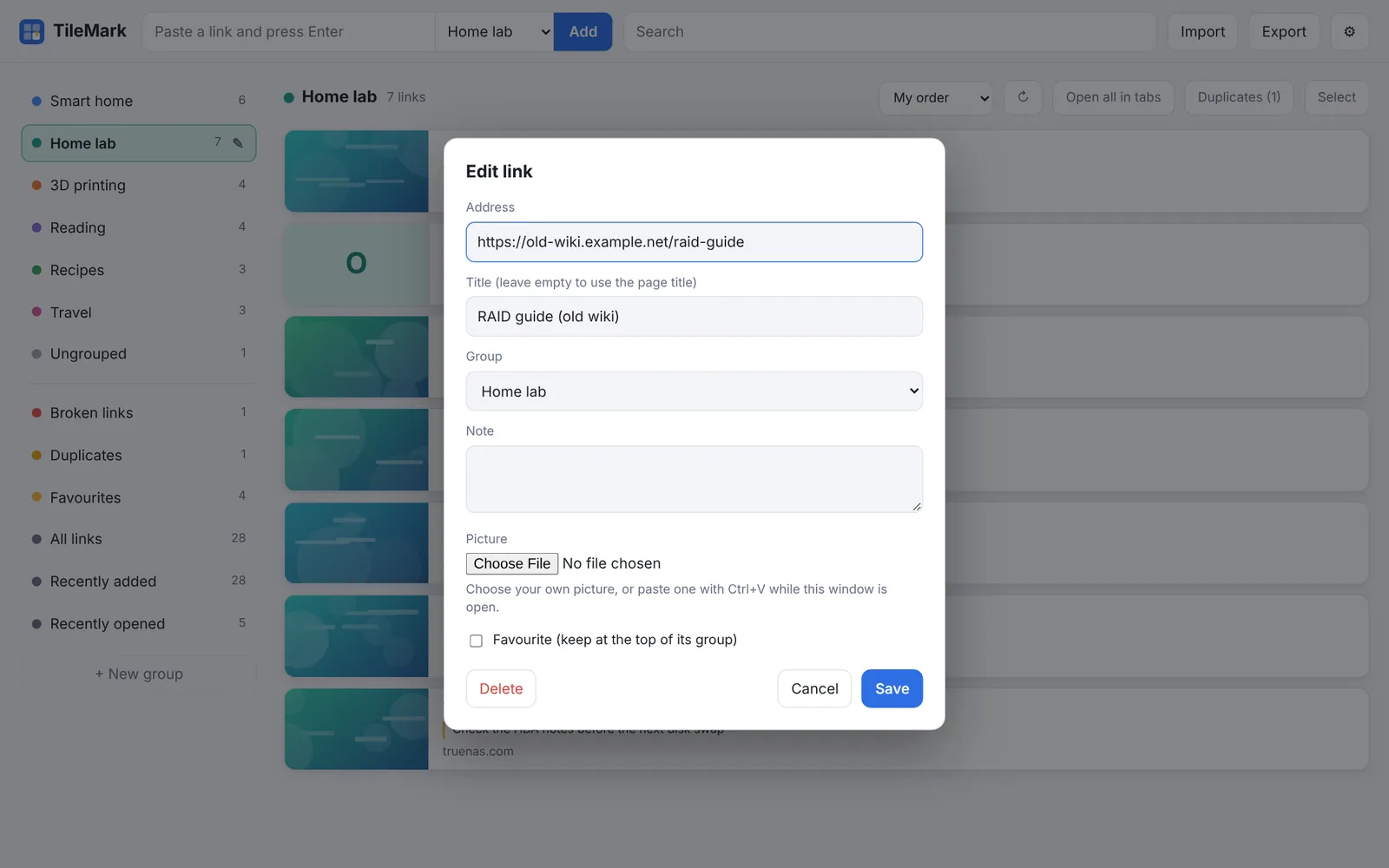
The ✎ button opens the edit window:
| Field | What it does |
|---|---|
| Address | The link itself. Changing it fetches the title and picture again. |
| Title | Your own title. Leave it empty to use the page's own title. |
| Group | Moves the link to another group. |
| Note | Your own note, shown on the card and found by search. |
| Picture | Choose an image file, or paste an image with Ctrl+V while the window is open. Use the site's picture again goes back to the fetched one. |
| Favourite | Keeps the link at the top of its group. |
| Delete | Deletes the link. |
Groups
Groups are like folders, or like the tab groups in your browser: each has a name and a colour, and they appear in the order you choose.
- New group: + New group in the left column (or in the toolbar, in the Sections layout).
- Edit a group: the ✎ next to its name. There you change the name and colour (pick one, or Other colour… for any colour), choose its Place in the list, or Delete group. Deleting a group keeps its links; they become ungrouped.
- Move a link to a group: drag the card onto the group in the left column, or use ✎ on the card.
- Reorder groups: drag a group onto another one in the left column.
- Open all in tabs: opens every link of the group at once. Your browser may ask you to allow pop-ups the first time.
Lists that are always there
Below your groups, the left column has lists TileMark keeps for you:
| List | What it shows |
|---|---|
| Ungrouped | Links that are not in any group. |
| Broken links | Links the last check could not reach. Only shown when there are some. |
| Duplicates | Sets of links that lead to the same page. Only shown when there are some. |
| Favourites | All links with a ★. |
| All links | Everything. |
| Recently added | Your 30 newest links. |
| Recently opened | The 30 links you opened last. |
Two layouts
Choose in ⚙ Settings → Layout. The choice is saved with your account, so all your devices look the same.
Side panel (shown above): groups in a column on the left; click one to list its links beside it. Compact, and quick with many groups.
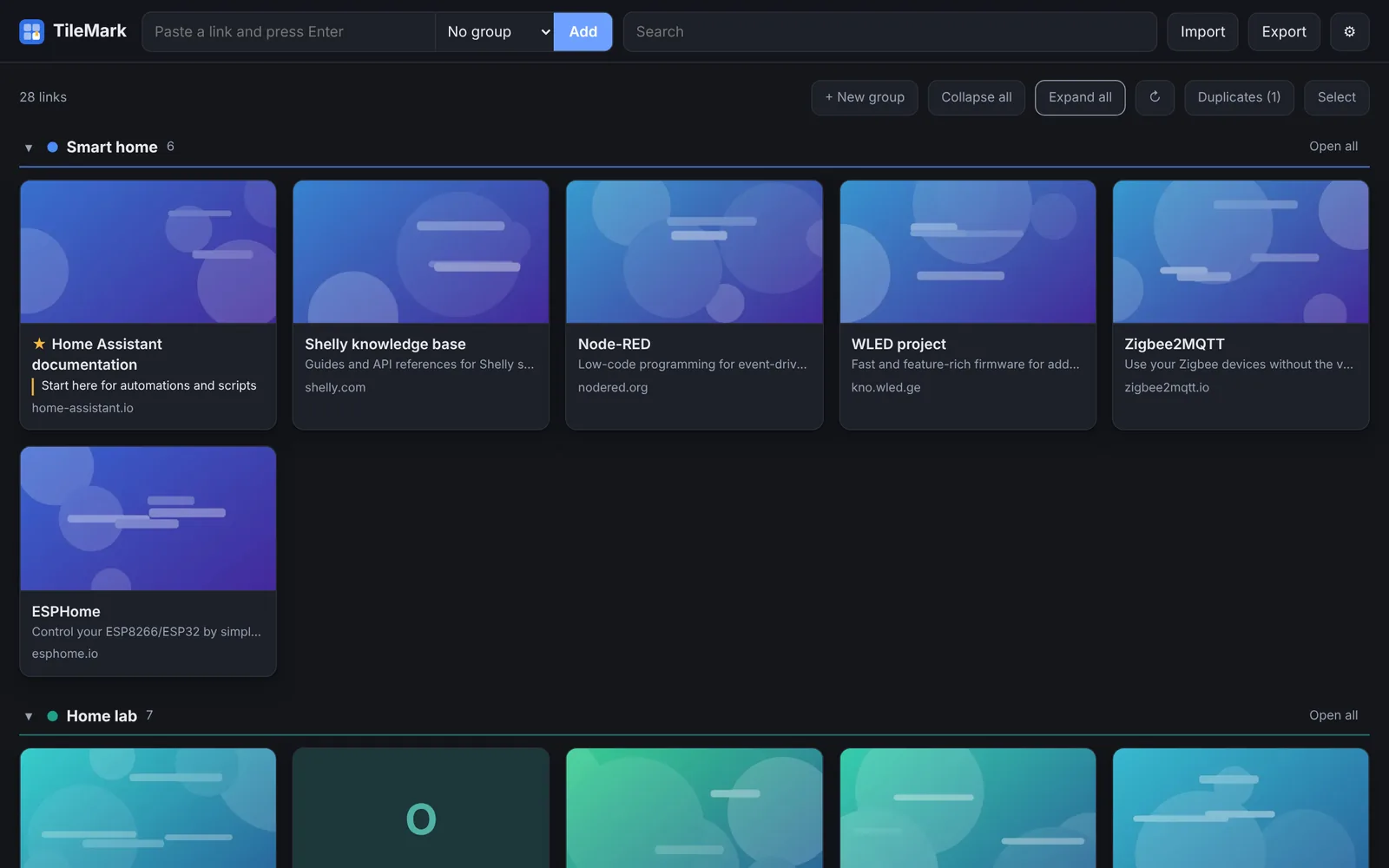
Sections: all groups on one page as collapsible sections with large picture cards. Collapse all and Expand all fold every section at once; click a section's title to fold just that one.
Ordering and sorting
- Your own order: drag a card inside its group to move it. This works inside a group, not in mixed lists like All links or search results.
- Sort: the list above the cards sorts a group by My order, Newest first, Oldest first, Name or Site. Each group remembers its own choice.
- Favourites always come first in their group.
Working with several links
Select (top right) turns on selection mode. Click cards to tick them, or use Select all. Then:
- Move to… puts them in another group;
- Refresh fetches their titles and pictures again;
- Delete removes them;
- or drag the whole selection onto a group.
Done leaves selection mode. ↻ in the toolbar refreshes every link shown at that moment, for example a whole group.
Search
Type in Search to find links by title, address, description, note or group name. Results come from all your groups; clear the field (or press Esc) to go back.
On a phone, tap the magnifier next to the name to open the search field. It closes again when you leave it empty.
Keyboard shortcuts
| Key | What it does |
|---|---|
/ |
Jump to the search field |
n |
Jump to the field for adding a link |
Esc |
Clear the search, leave a field, or close a window |
Light, dark and languages
⚙ Settings → Appearance chooses light, dark, or Follow my device, and the language: English, Nederlands (Dutch), Deutsch (German) or العربية (Arabic, shown right to left). By default TileMark follows your browser's language. See Settings.
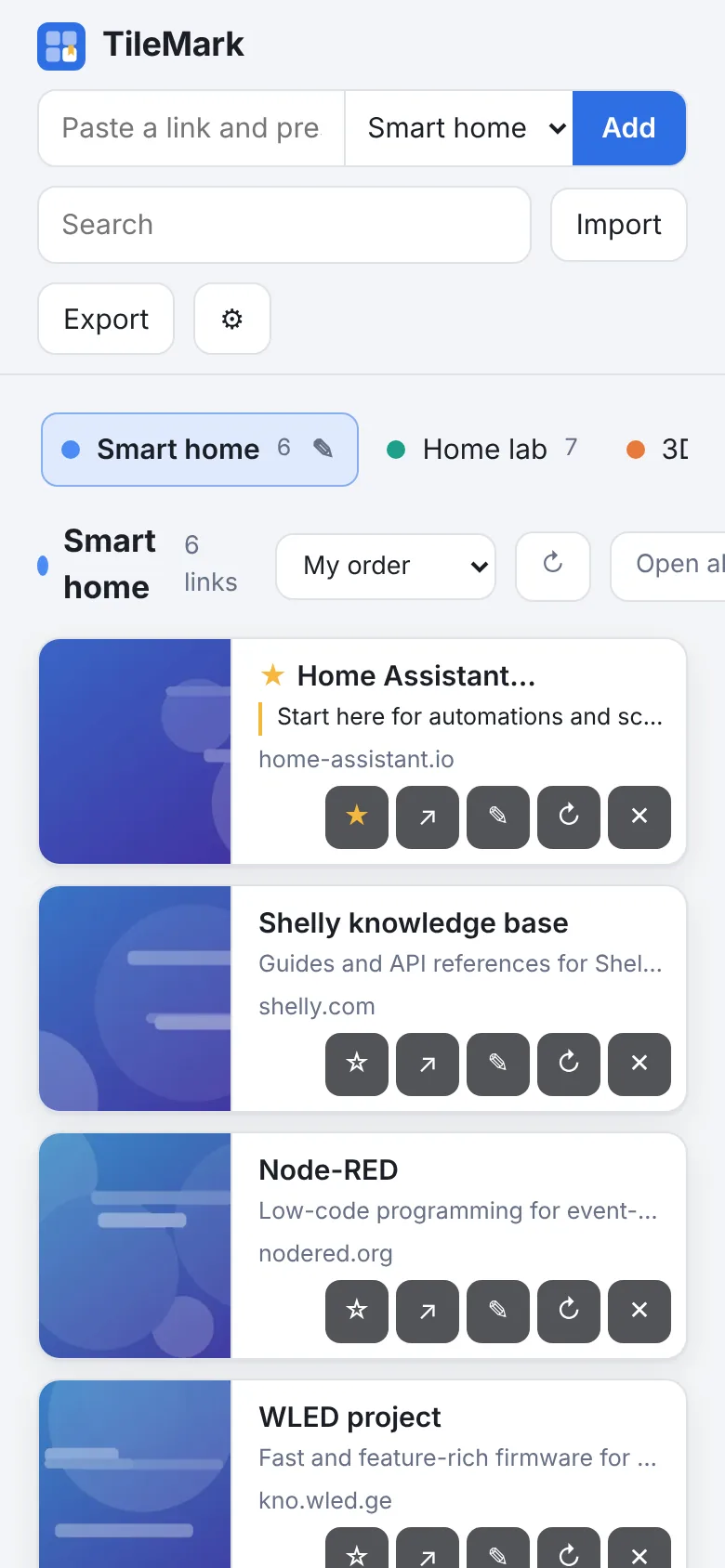
On a phone
TileMark works in any phone browser: the groups become a row you can swipe, and the card buttons sit under each link. With HTTPS you can also install it as an app and share links to it from other apps; see Save from anywhere.