 TileMark
Home Assistant sensors
TileMark can appear in Home Assistant as a device with its own sensors, set up by itself through MQTT discovery: no YAML and no custom integration. Use it on a dashboard, or to get a phone notification when links break.
This works with the Home Assistant app and with TileMark in Docker.
What you get
| Entity | Type | Shows |
|---|---|---|
| Links | Sensor | The number of links, all accounts together. |
| Broken links | Sensor | How many links the last check couldn't reach. |
| Last link check | Sensor (time) | When all links were last checked: by the weekly check, or by an admin's Check now. |
| Last backup | Sensor (time) | When the newest daily backup of the whole installation was made. Empty while there is none. |
| Backup encryption | Binary sensor | On when the daily backups are encrypted, off when they are not. |
| Link check | Event | Fires when a check of all links finishes (weekly, or an admin's Check now), with checked, broken and new_broken. |
Only counts, times and on/off states are sent. Nobody's links, titles or addresses ever leave TileMark.
The device page also shows the TileMark version, and a Visit link back to TileMark: the sidebar page in Home Assistant, or the address you use for Docker. In the Home Assistant app the link is there while Show in sidebar is on, on the app's Info tab.
What you need
An MQTT broker that Home Assistant uses. Most people use the Mosquitto broker app with the MQTT integration. If you have other MQTT devices (Zigbee2MQTT, Shelly, Tasmota …), you already have one.
Turning it on
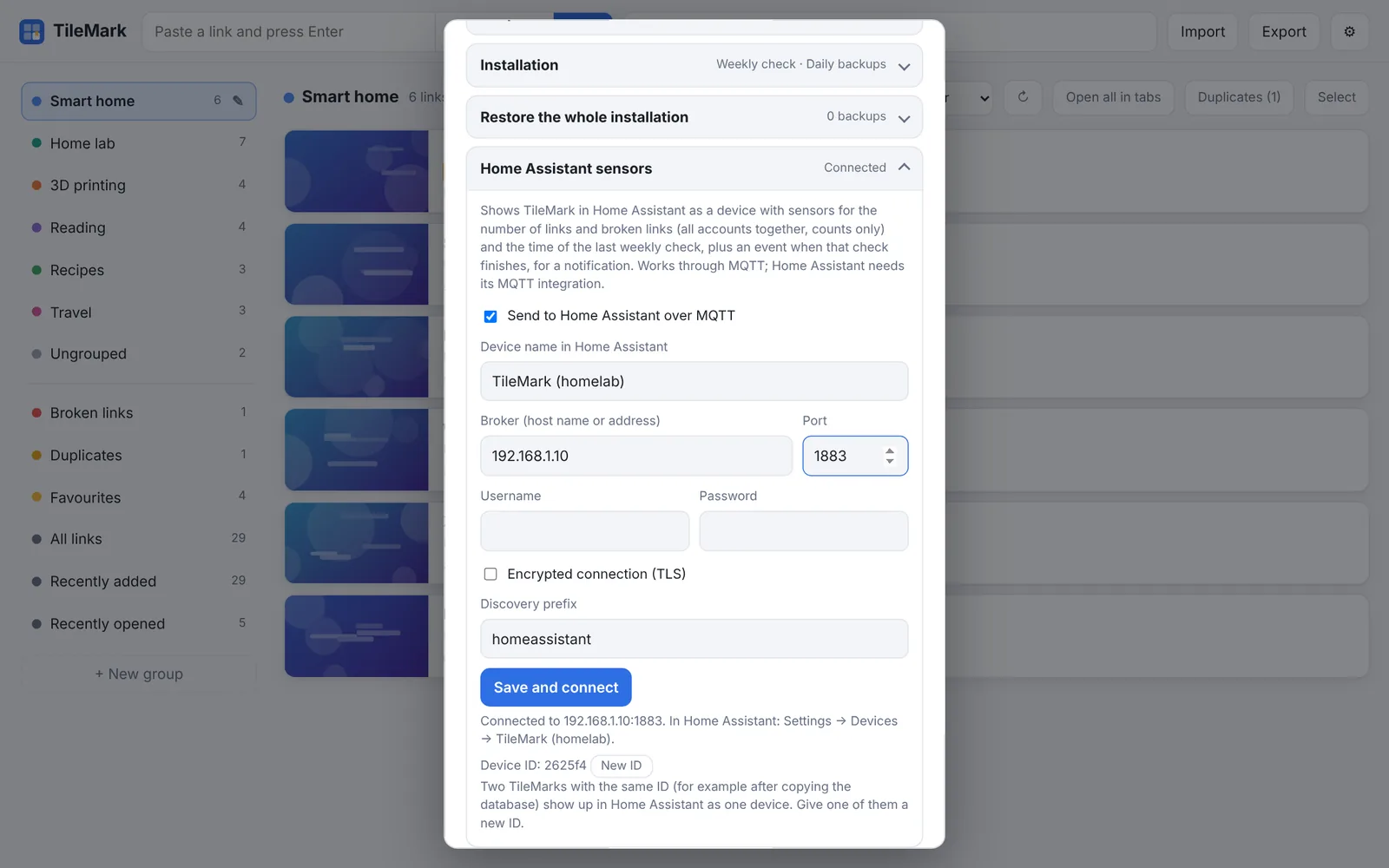
In the Home Assistant app it is on by default and uses Home Assistant's own broker by itself. Open ⚙ Settings → Home Assistant sensors only to check that it says Connected, or to change the name.
In Docker (admin):
- Open ⚙ Settings → Home Assistant sensors and tick Send to Home Assistant over MQTT.
- Fill in the broker:
- Broker: the address of your MQTT broker, for example the address of your Home Assistant (
192.168.1.10); - Port: usually1883(or8883with TLS); - Username and Password: an MQTT user. With the Mosquitto app, any Home Assistant user works, or one made for this in the app's settings; - Encrypted connection (TLS): only if your broker uses it. - Press Save and connect. The line below says Connected to … within a few seconds.
- In Home Assistant, the device appears under Settings → Devices & services → Devices.
All options
| Option | Meaning |
|---|---|
| Send to Home Assistant over MQTT | Switches it all on or off. Off removes the device from Home Assistant. |
| Device name in Home Assistant | How the device is called. Empty uses the default: "TileMark (Home Assistant)" in Home Assistant, or "TileMark (address)" for Docker. |
| Broker, Port | Where the MQTT broker is. In Home Assistant, leave the broker empty to use Home Assistant's own. |
| Username, Password | The MQTT login. A stored password is kept when you leave the field empty. |
| Encrypted connection (TLS) | For brokers that use TLS. |
| Discovery prefix | Where Home Assistant looks for new devices. Leave it at homeassistant unless you changed it in the MQTT integration. |
| Device ID / New ID | See below. |
The status line explains what is happening: Connected, Connecting…, or Not connected with the reason (wrong password, broker not reachable …).
A notification when links break
This automation sends a message to your phone when a check of all links finds newly broken links. Replace the entity with your TileMark's Link check entity (open the device page to find its name) and the notify action with your phone:
alias: TileMark broken links
triggers:
  - trigger: state
    entity_id: event.tilemark_home_assistant_link_check
conditions:
  - condition: template
    value_template: "{{ trigger.to_state.attributes.new_broken | int(0) > 0 }}"
actions:
  - action: notify.mobile_app_your_phone
    data:
      title: TileMark
      message: >-
        Found {{ trigger.to_state.attributes.new_broken }} new broken links
        ({{ trigger.to_state.attributes.broken }} in total).
Several TileMarks in one Home Assistant
You can run more than one TileMark, for example one in Home Assistant and one in Docker. Each appears as its own device, as long as they have different device IDs.
Every installation makes up its own device ID the first time. But an installation made from another one's database (by copying the data folder, or restoring a daily backup into a fresh installation) starts with the same ID, and Home Assistant would show the two as one device.
The fix: on one of them, press New ID (under the status line) and confirm. Its old entities are removed from Home Assistant and new ones appear. Automations that used the old entities need the new ones. Then give each a clear Device name.
Troubleshooting
- Not connected: wrong username or password. Check the MQTT user. With the Mosquitto app, the user must exist in Home Assistant or in the app's configuration.
- Connected, but no device in Home Assistant. Check that the MQTT integration is set up, and that the Discovery prefix matches its setting (default
homeassistant). - Entities show "Unavailable". TileMark is stopped, or lost its connection to the broker. It reconnects by itself.
- Two TileMarks, one device. See above.