 TileMark
Import and export
Bring your existing bookmarks into TileMark in one go, and take your links out again whenever you like. Nothing is ever locked in.
Import
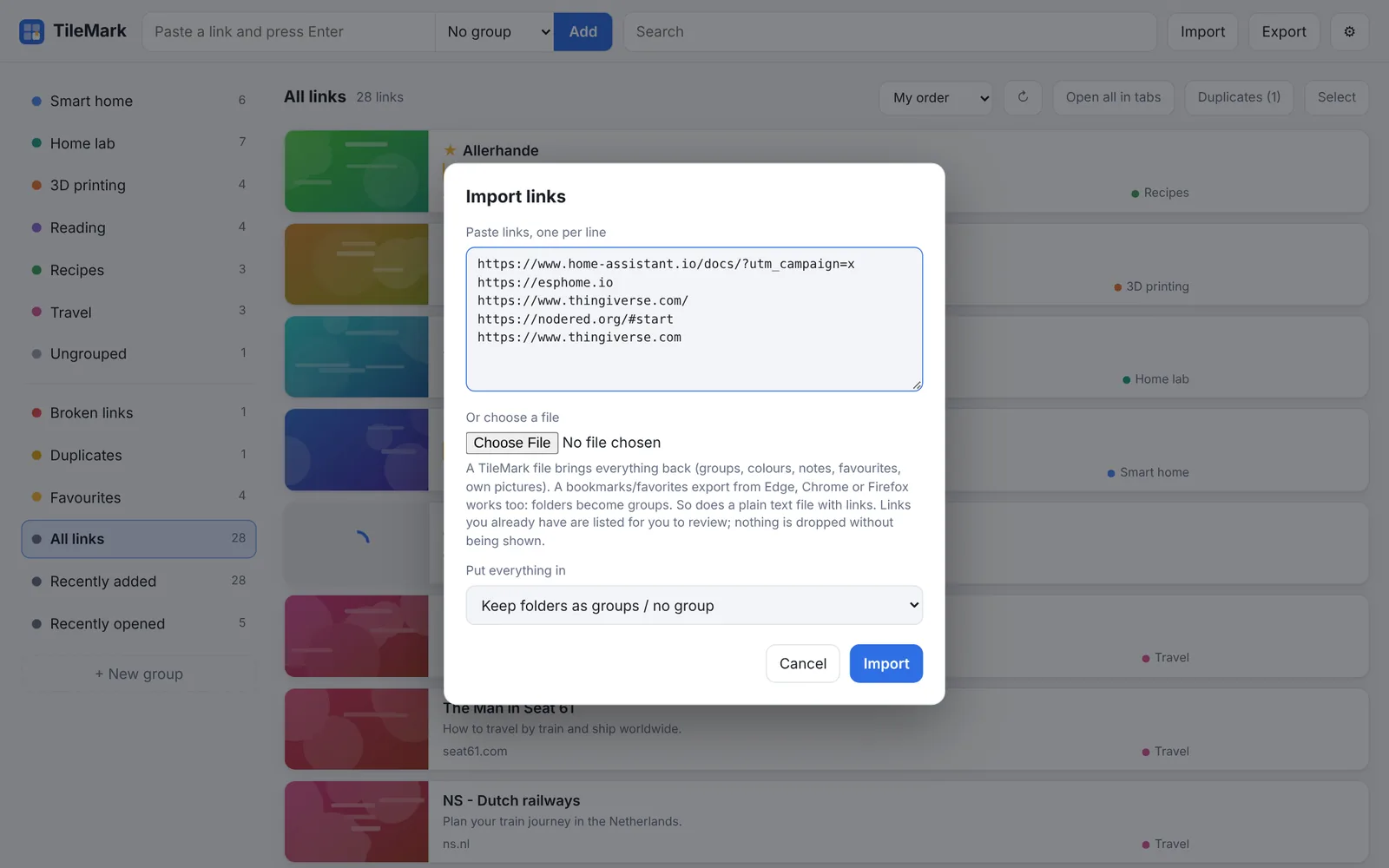
Click Import in the top bar. You can:
- paste links, one per line, into the box; or
- choose a file:
- a bookmarks / favorites export from Edge, Chrome, Firefox, Brave or Safari (
.html): each folder becomes a group; - a TileMark file (
.json, from Export): brings back everything, including groups, colours, notes, favourites and your own pictures; - a plain text file with links.
Put everything in chooses where the links go: keep the file's folders as groups (or no group, for pasted links), or put everything into one group you pick.
Pictures and titles are fetched in the background, a few at a time, so a big import fills in over a minute or two. You can keep working meanwhile.
Tip: pasting several lines into the "add a link" field at the top opens this window with them filled in.
Export your bookmarks from a browser
| Browser | Where |
|---|---|
| Edge | Favorites (Ctrl+Shift+O) → ⋯ → Export favorites |
| Chrome / Brave | Bookmark manager (Ctrl+Shift+O) → ⋮ → Export bookmarks |
| Firefox | Bookmarks → Manage bookmarks (Ctrl+Shift+O) → Import and Backup → Export Bookmarks to HTML |
| Safari | File → Export → Bookmarks |
Each saves an .html file that TileMark reads directly.
Duplicates
TileMark recognises when two addresses lead to the same page, even when they look a little different. Two addresses count as the same page when they differ only by:
httporhttps, orwww.or not;- a slash at the end;
- the order of their parameters, or tracking parameters (
utm_…,fbclid, …); - a YouTube short form (
youtu.be/…,/shorts/…) versus the normal address; - a redirect: one address forwards to the other.
When you save a link
If you already have the page, TileMark tells you where it is (for example already saved in "Home lab": TrueNAS documentation) instead of saving it twice.
When you import
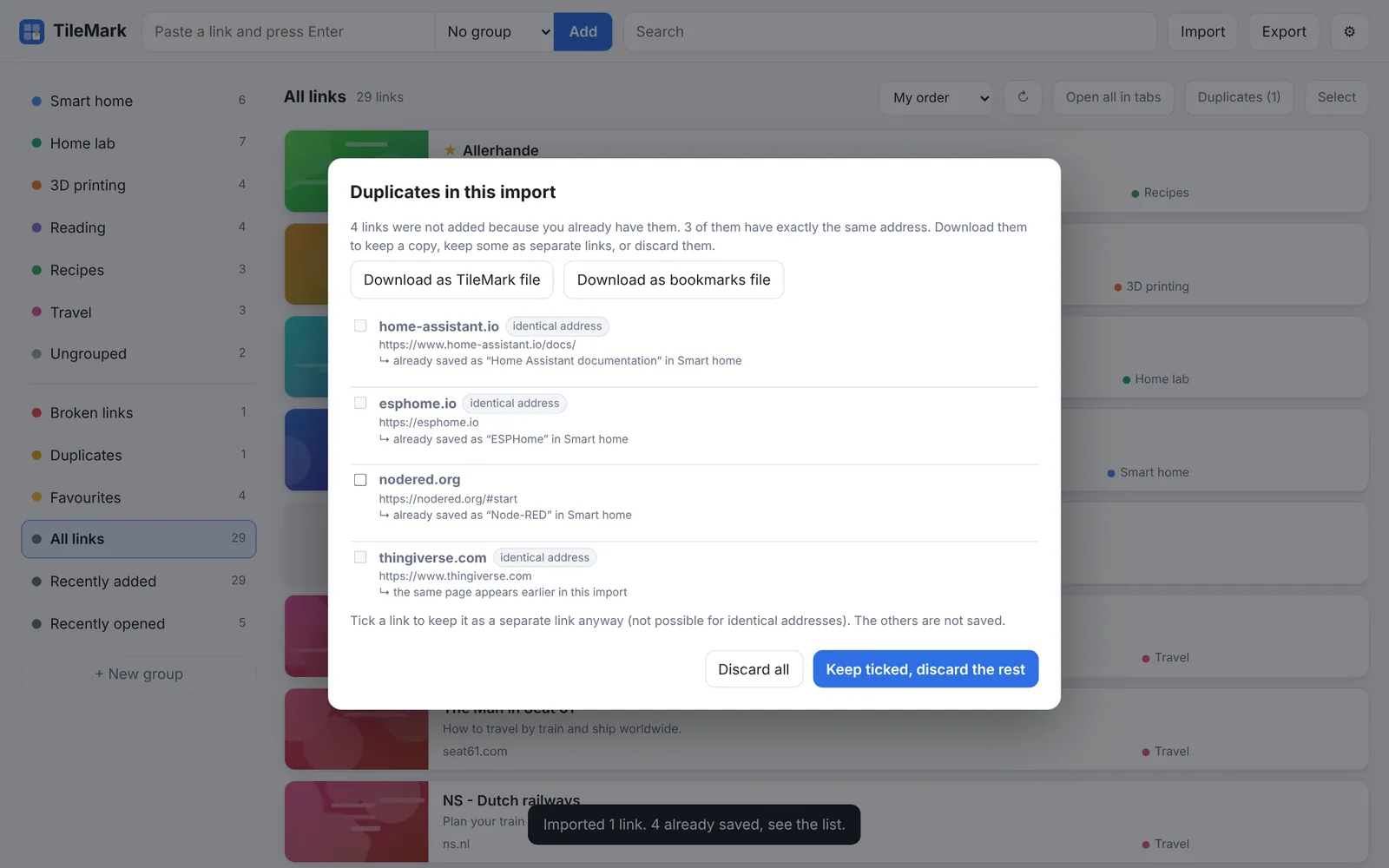
Links you already have are never added twice and never thrown away silently. After the import a window lists each one, with the link it matches (or the same page appears earlier in this import). From there you can:
- Download as TileMark file or Download as bookmarks file to keep a copy;
- tick links to keep them as separate links anyway (not possible when the address is exactly the same);
- Keep ticked, discard the rest, or Discard all.
This window stays open until you choose, so nothing is lost by a stray click.
Cleaning up what you already have
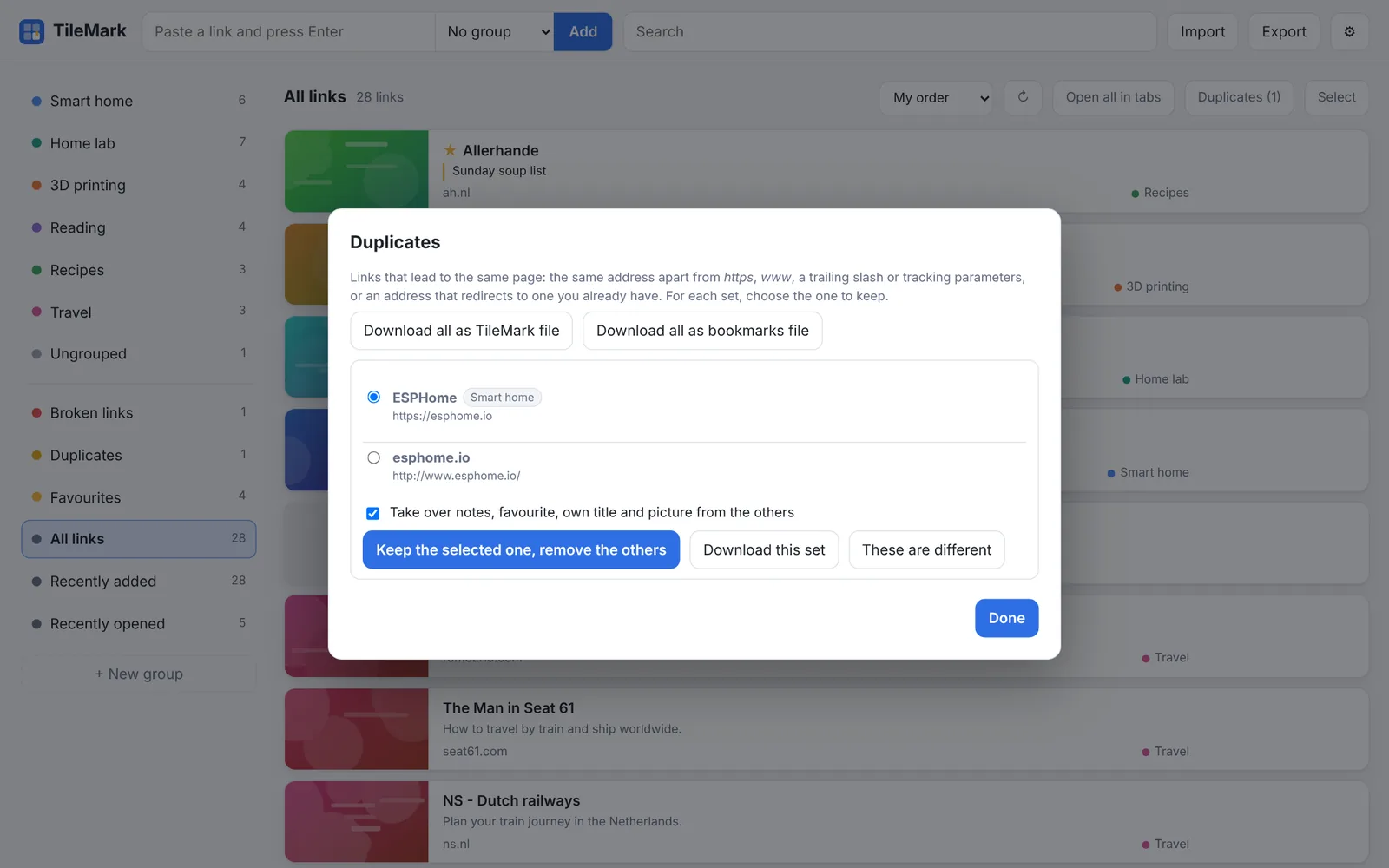
When your saved links contain duplicates, a Duplicates button appears in the toolbar (and a Duplicates entry in the left column). It shows each set of links that lead to the same page. For each set:
- Choose the link to keep.
- Optionally tick Take over notes, favourite, own title and picture from the others, so nothing you added is lost.
- Press Keep the selected one, remove the others.
These are different hides a set for good, for pages that only look alike. Download this set (or download all sets at the top) keeps a copy first.
Export
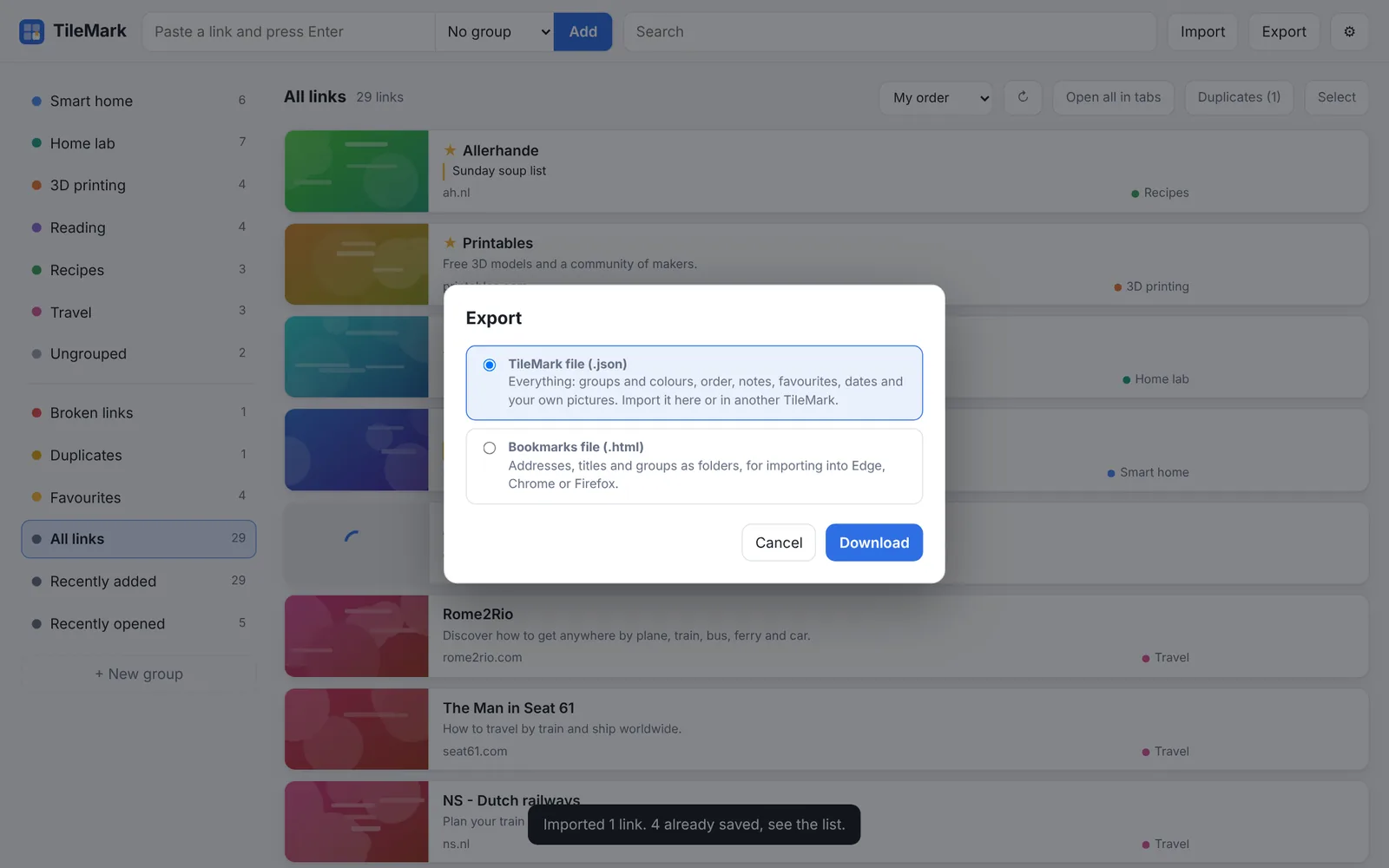
Export in the top bar offers two files:
| File | What is in it | Use it for |
|---|---|---|
TileMark file (.json) |
Everything: groups and colours, their order, notes, favourites, dates and your own pictures. | Moving to another TileMark or another account, or a readable copy for yourself. |
Bookmarks file (.html) |
Addresses and titles, with groups as folders. | Importing into Edge, Chrome, Firefox or any other browser. |
Fetched pictures are not included in the TileMark file; they come back by themselves after an import. Your own pictures are included.
Both files are plain, readable files. For an encrypted copy, use a backup instead.