Using PrintView3D
Open a file: double-click it (if PrintView3D is the default), drag it onto the window, use
Open, or pick it from Recent. Try the files in examples/ to get started.
Home: the house button (Ctrl+W) closes the open file and goes back to the start page, with
your recent files. It also gives back the memory the file took, which matters most after a large
G-code or ZIP.
One window: a file you double-click while PrintView3D is already open is shown in that window, which comes to the front. To give every file its own window (to compare two models side by side), tick Settings → Files → Open each file in a new window. Starting PrintView3D from the Start menu or applications menu, without a file, always opens a new window.
Mouse
| Action | What it does |
|---|---|
| Left-drag | Rotate. Press on the model to rotate around that exact point; press on empty space to rotate around the model's centre. The plate always stays level. |
| Right-drag (or middle-drag, or Shift + left-drag) | Move (pan) |
| Mouse wheel | Zoom towards the mouse pointer |
Looking from underneath? The plate gets out of the way so you can see the bottom of the part.
Keyboard
The same list is in the program under Settings → About → Keyboard and mouse.
| Key | Action |
|---|---|
Ctrl+O |
Open a file |
Ctrl+W |
Close the file (back to the start page) |
Ctrl+P |
Open the file in your default slicer |
Ctrl+E |
Export STL (3MF projects, FreeCAD and STEP files) |
Ctrl+T |
Next theme style (Default → Gray → Graphite → Ember), same light/dark mode |
Ctrl+Shift+T |
Switch the theme between light and dark |
F · 1 · 2 · 3 · 4 |
Fit · Iso · Top · Front · Right view |
↑ / ↓ |
Next / previous layer (G-code), or the previous / next file in a ZIP |
Page Up / Page Down |
10 layers up / down |
Home / End |
First / last layer |
Choosing your slicer
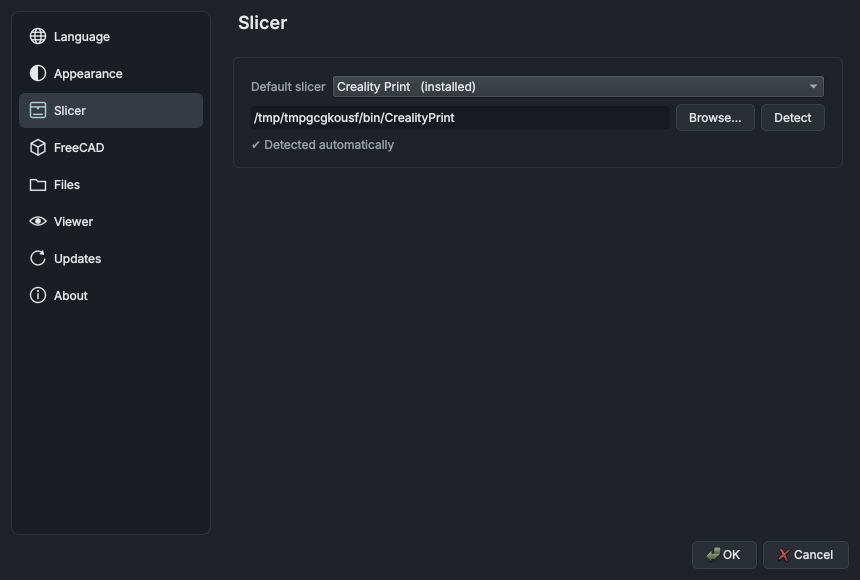
Settings → Slicer → Default slicer. Each slicer is marked installed or not found. If yours
is installed in an unusual place, click Browse… and select its program file. For a slicer that
is not in the list, choose Custom program…, give it a name and select its .exe.
The green button is renamed to match ("Open in OrcaSlicer"). The small ▾ arrow next to it lists your other installed slicers, for opening a file in one of them just once.
Export STL from 3MF
With a 3MF project open, Export STL in the toolbar (Ctrl+E) saves its objects as plain STL
files, for example to share a model or open it in a program that does not read 3MF.
- A dialog lists every object with its name and triangle count, all ticked; untick what you don't need.
- The arrow next to the button offers every way directly: All objects as one STL, One STL per object and Choose objects… (the dialog). The one a click makes is shown in bold.
- What a click does (and
Ctrl+E) is chosen in Settings → Files → Export STL: show the list of objects (the default), save everything as one STL, or save one STL per object. Change what a click does… at the bottom of the arrow's menu opens that setting. - One combined STL: the ticked objects in one file, placed as they are on the plate.
- One STL per object: each file is named after its object and saved into a folder you choose (PrintView3D asks before replacing files that are already there).
- A file with only one object always goes straight to the Save dialog.
- Raw geometry only: modifiers, negative parts and support blockers / enforcers are left out (as recorded by Creality Print, OrcaSlicer, Bambu Studio and PrusaSlicer), and so are colours, materials and print settings. Sizes are in millimetres; the files are binary STL.
ZIP files
Model downloads often come as a ZIP. Open it like any other file (Open… or drag it onto the window); there is no need to unpack it first.
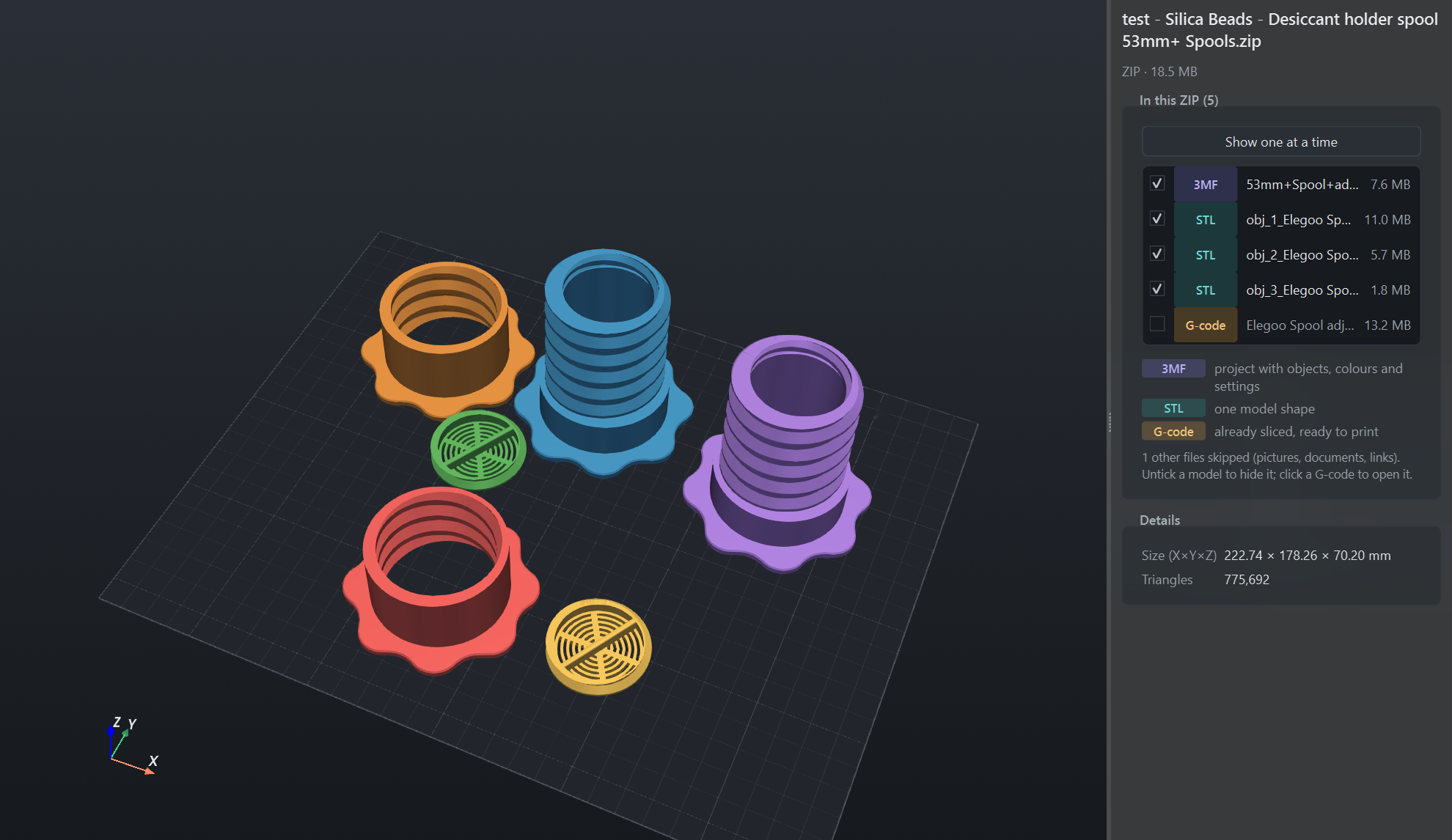 Show all side by side: tick or untick each model; the G-code opens on its own. |
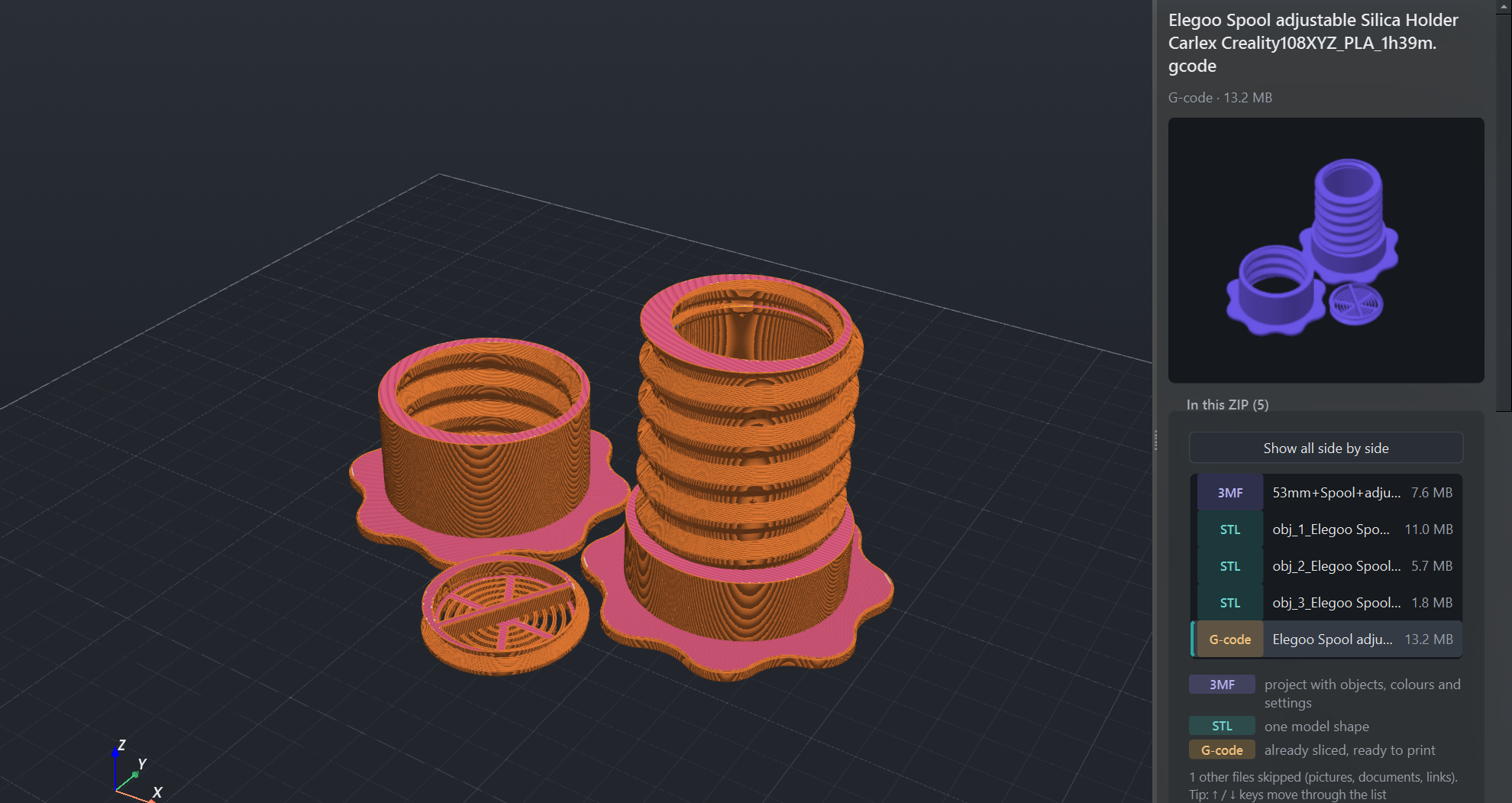 Click a file in the list, or use ↑ / ↓: here the sliced G-code from the same ZIP. |
- Only the 3D files are used: STL, 3MF, OBJ, PLY, OFF, glTF/GLB, STEP, FreeCAD and G-code.
Pictures, PDFs, read-me files, web links, ZIPs inside the ZIP and the hidden
__MACOSXfolder are skipped, and the panel says how many were skipped. - A ZIP with one 3D file opens just like that file.
- More files are listed in the side panel with a coloured label for their type (STL, 3MF, G-code, …) and a short explanation of each type. The first file is shown; click another one, or use ↑ / ↓, to switch.
- Show all side by side places the models next to each other: up to three in one row, then a grid (four as 2 × 2, six as 3 × 2, nine as 3 × 3, …), spaced by their real size. Untick models in Objects to hide them. G-code, STEP and FreeCAD files are opened one at a time.
- Open in slicer sends the model you are looking at; in Show all, the ticked models. The arrow next to the button has Send all models in the ZIP.
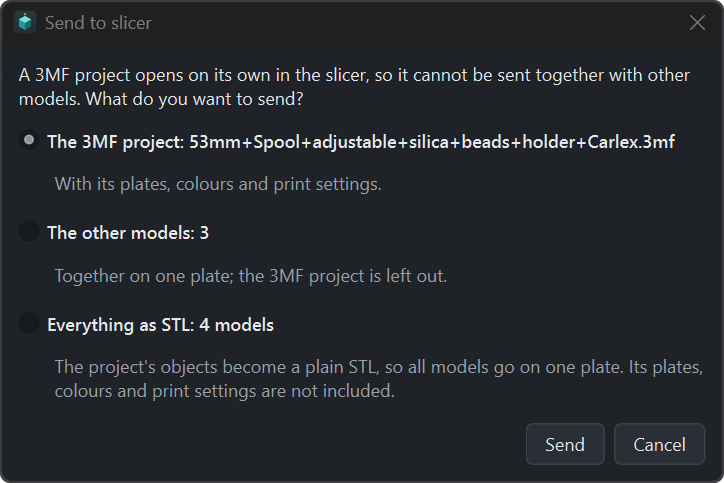
- A slicer opens a 3MF as a project on its own, so it cannot take a 3MF together with other files. When the models to send include a 3MF, PrintView3D asks: the 3MF project (with its plates and settings), the other models on one plate, or everything as STL (the project's objects become a plain STL, so all models go on one plate).
The 3D files are unpacked into PrintView3D's own cache folder (slicers need real files); the sizes are checked first, so a damaged or malicious ZIP cannot fill your disk. Files from ZIPs opened more than a day ago are removed automatically.
Language
Settings → Language switches the whole program immediately, including file dialogs and standard buttons. English is the default; Automatic follows your system language. Arabic uses a right-to-left layout; measurements always use Western digits (0.20 mm). A wrong or missing word? The link on that page leads to How to translate.
Themes
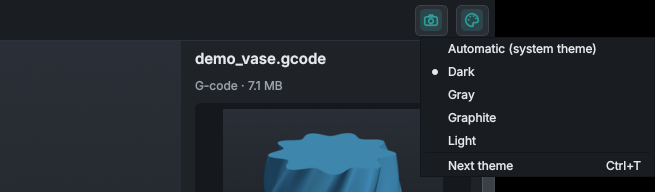
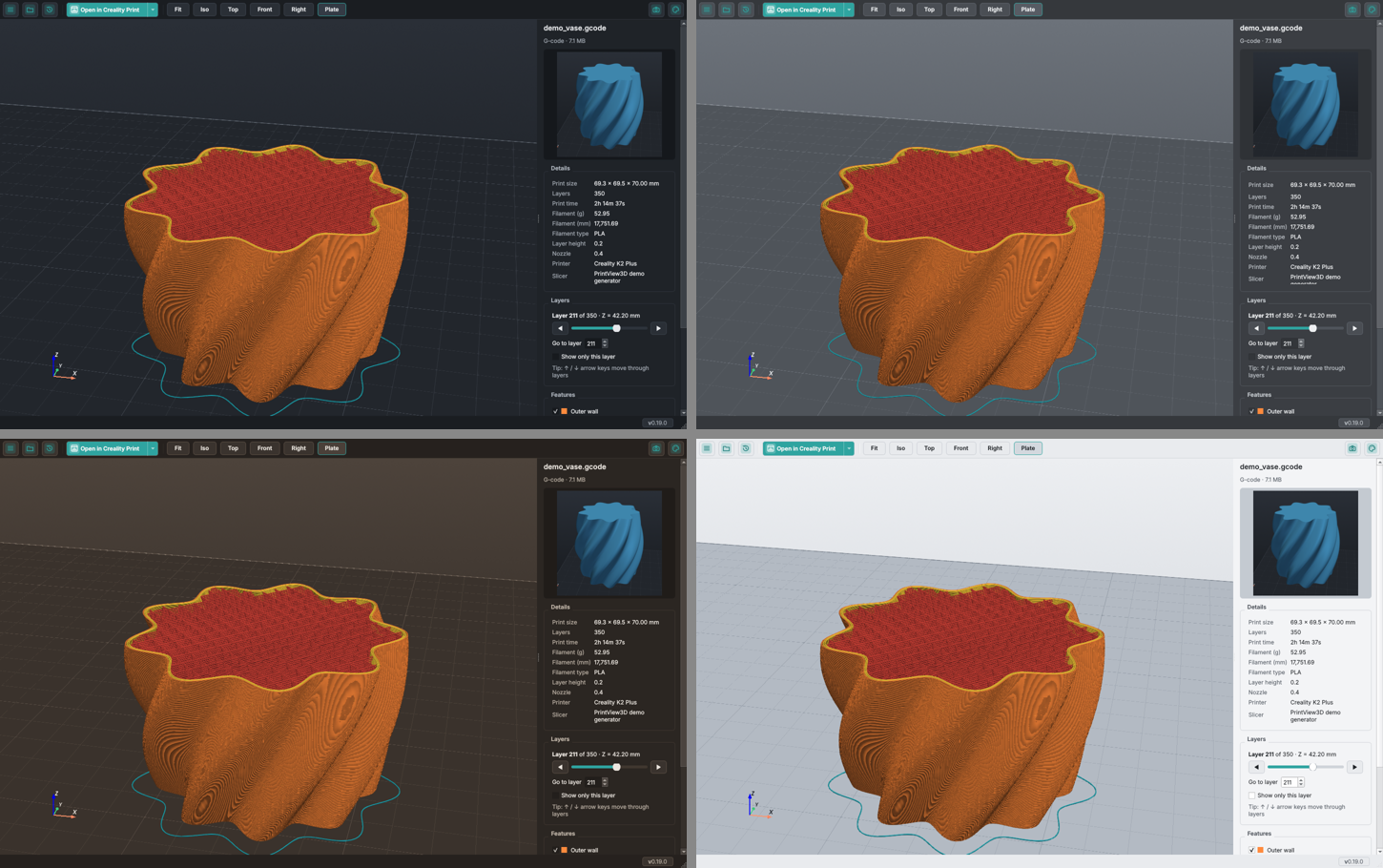
A theme is a style — Default, Gray, Graphite (warm coffee tones) or Ember (orange and teal) — in a mode: Light, Dark or System (follows the dark/light setting of your computer, and switches along when that changes). Every style has a light and a dark version.
Choose in Settings → Appearance → Theme (a picture card per style and a Light / Dark / System
selector), or with the palette icon at the right end of the toolbar. Ctrl+T steps to the
next style; Ctrl+Shift+T switches between light and dark.
The switch is immediate; the 3D background, plate and grid change with it, while G-code and model colours stay the same so they always match your slicer.
Window transparency (Windows 11)
Settings → Appearance → Window transparency lets the toolbar, side panel and status bar show what lies behind the window, in any theme:
- Mica: a soft tint of your desktop wallpaper (as in File Explorer).
- Acrylic: frosted glass that blurs the desktop and other windows behind it.
- Off (default): solid, as before.
The 3D view always stays solid. It takes effect after a restart: when you click OK, PrintView3D asks Restart now (it closes and opens again, with the same file) or Later. Windows draws the effect itself and shows a plain colour while the window is not active, and switches it off with Transparency effects off in Windows Settings or in battery saver. Windows 10 and other systems keep the normal look.
Updates
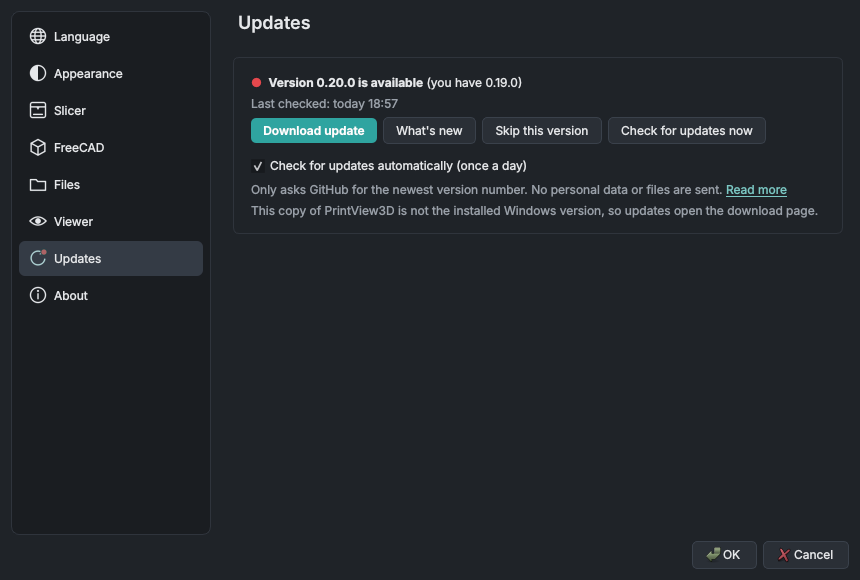
Settings → Updates shows your version and has Check for updates now. You can also switch on Check for updates automatically (once a day); PrintView3D asks once whether you want this, and you can change it there at any time.
When a new version exists, the version in the bottom-right corner shows a red dot (● v0.10.0 →
0.11.0), and so does Updates in Settings. Click it to see What's new, then:
- Windows (installed with Setup.exe): Install update. PrintView3D downloads the new installer, checks its SHA-256 fingerprint against the one GitHub publishes, installs it (no questions, your settings are kept) and starts the new version.
- Linux (AppImage) and the portable Windows zip: Download update opens the release page; download the new file and replace the old one.
- Skip this version hides that version; the next one is shown again.
After an update, the first start shows What's new for the version you now have, once, however you updated (installer, winget, zip or AppImage). It is read from the changelog that comes with the program, so it needs no connection. A fresh install doesn't show it.
Updates and privacy
PrintView3D works offline. It connects to the internet only for updates, and only when you click Check for updates now or have switched on the daily check:
| What is contacted | api.github.com (to ask for the newest release of this project) and, when you click Install update, the download from github.com |
| How often | At most once a day (automatic check), or when you click Check for updates now |
| What is sent | Only the request for the newest version, with the program name and version (PrintView3D/0.10.0). No personal data, no files, no usage statistics, no ID. |
| What GitHub sees | Like any website: your IP address. See GitHub's privacy statement. |
| How to turn it off | Settings → Updates → untick Check for updates automatically. Nothing is contacted after that. |
Smoother rotation on laptops
Many laptops have two graphics chips and run programs on the slower one by default. Settings → Viewer → Graphics shows which one PrintView3D uses. If it says Intel, tick Use the high-performance graphics card and click OK; choose Restart now (or Later, and it switches the next time you start PrintView3D).
Notes and limits
- Windows 10/11 and Linux (x86-64) are packaged and tested. The Mac versions (Apple silicon and Intel, macOS 14.4+) are in beta. ARM Linux (Raspberry Pi etc.) is not packaged yet.
- A 3MF project saved in one brand of slicer may lose its printer/print settings when opened in a different brand. The model itself loads fine; that's how the slicers behave.
- Binary G-code (
.bgcode) is not supported yet. - File Explorer thumbnails are made for 3MF, STL, G-code and FreeCAD files; not yet for OBJ, PLY, OFF and glTF.
- FreeCAD documents need an installed FreeCAD for the 3D view (PrintView3D does not include FreeCAD's geometry engine). Very old or very new FreeCAD versions may not open each other's files.