PrintView3D
A fast, free viewer for STL, 3MF, G-code, FreeCAD, STEP, OBJ, PLY and glTF files on Windows, Linux and macOS, with a one-click button that opens the file in your slicer.
Download How to install Source code on GitHub
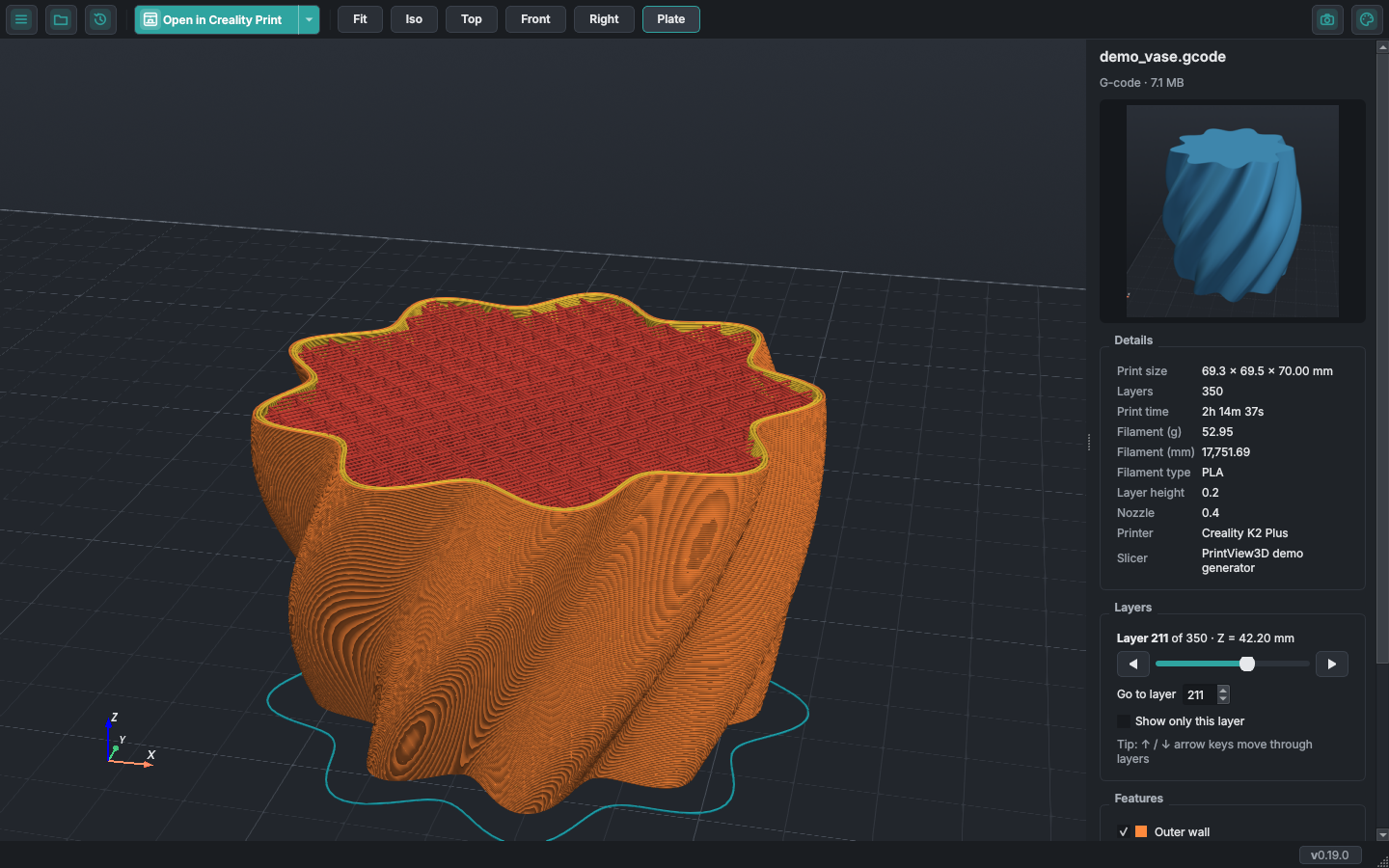
Microsoft retired its 3D Viewer app, and Linux never had a good one. PrintView3D fills the gap, made for people who 3D-print:
it shows models and sliced G-code, tells you the size, print time and filament use, and sends the
file to Creality Print, OrcaSlicer, Bambu Studio, PrusaSlicer, Cura and others with one click.
Designing in FreeCAD? Open the .FCStd file and send it to your slicer as a model directly,
without exporting an STL first.
Features
| STL | Smooth-shaded model on a build plate, with size, triangle count and volume. |
| 3MF | Every object on the plate, including projects from Creality Print, OrcaSlicer and Bambu Studio. Show or hide each object, see the project's printer and filament settings and its thumbnail. If the project is already sliced, view its toolpaths without re-slicing. Export STL: save the objects as plain STL files, combined or one per object. |
| G-code | Toolpaths coloured by type (walls, infill, top/bottom, supports, bridges, travel…), a layer slider, "show only this layer", print time, filament use and the slicer's preview picture. |
| FreeCAD | Open .FCStd documents to look at them: shown in 3D exactly as FreeCAD displays them (visible bodies only), with one click to open in FreeCAD or send to your slicer as STL. Uses your installed FreeCAD; without it you still see the preview picture. Details. |
| STEP | Open .step / .stp CAD files: shown in 3D with the help of your installed FreeCAD (converted in the background, remembered afterwards), with the CAD program, author and date from the file. OrcaSlicer, PrusaSlicer and Bambu Studio get the STEP file itself; other slicers get an STL. Details. |
| OBJ, PLY, OFF, glTF / GLB | Other common 3D formats, with the colours saved in the file (textures are not shown). OBJ objects and glTF scenes are listed as separate objects. OBJ goes to your slicer as it is; PLY, OFF and glTF are sent as STL, because not every slicer reads them. Details. |
| ZIP files | Open a downloaded model package (Printables, Thingiverse, …) directly. Only the 3D files are used; pictures, documents and links are skipped. Pick a model from the list, or show all side by side; send one model or all of them to your slicer. Details. |
| Open in your slicer | One click (or Ctrl+P) opens the current file in your slicer. Installed slicers are found automatically. |
| Default app | Optional: make PrintView3D open .stl, .3mf and .gcode files when you double-click them. Fully reversible. |
| Your language | English, العربية (Arabic, right-to-left), Nederlands, Deutsch, Français, Español and Română; switch any time in Settings, no restart needed. Help translate. |
| Themes | Four styles — Default, Gray, Graphite (warm, easy on the eyes) and Ember (orange and teal) — each light or dark, or following your system, for the window and the 3D view. Switch with the palette icon, Ctrl+T (next style) or Ctrl+Shift+T (light ↔ dark). Toolpath colours stay the same in every theme. |
| Thumbnails | Windows File Explorer shows previews of 3MF, STL, G-code and FreeCAD files (installed with PrintView3D, optional). |
| Updates | Check for updates in Settings, or once a day if you allow it. On Windows one click downloads, checks and installs the new version. The version in the corner gets a red dot when an update is ready. What is sent. |
| One window | A file you double-click while PrintView3D is open is shown in that window, instead of opening another one. Prefer a window per file? Settings → Files → Open each file in a new window. |
| Comfortable to use | Slicer-style camera, drag & drop, recent files, screenshots. |
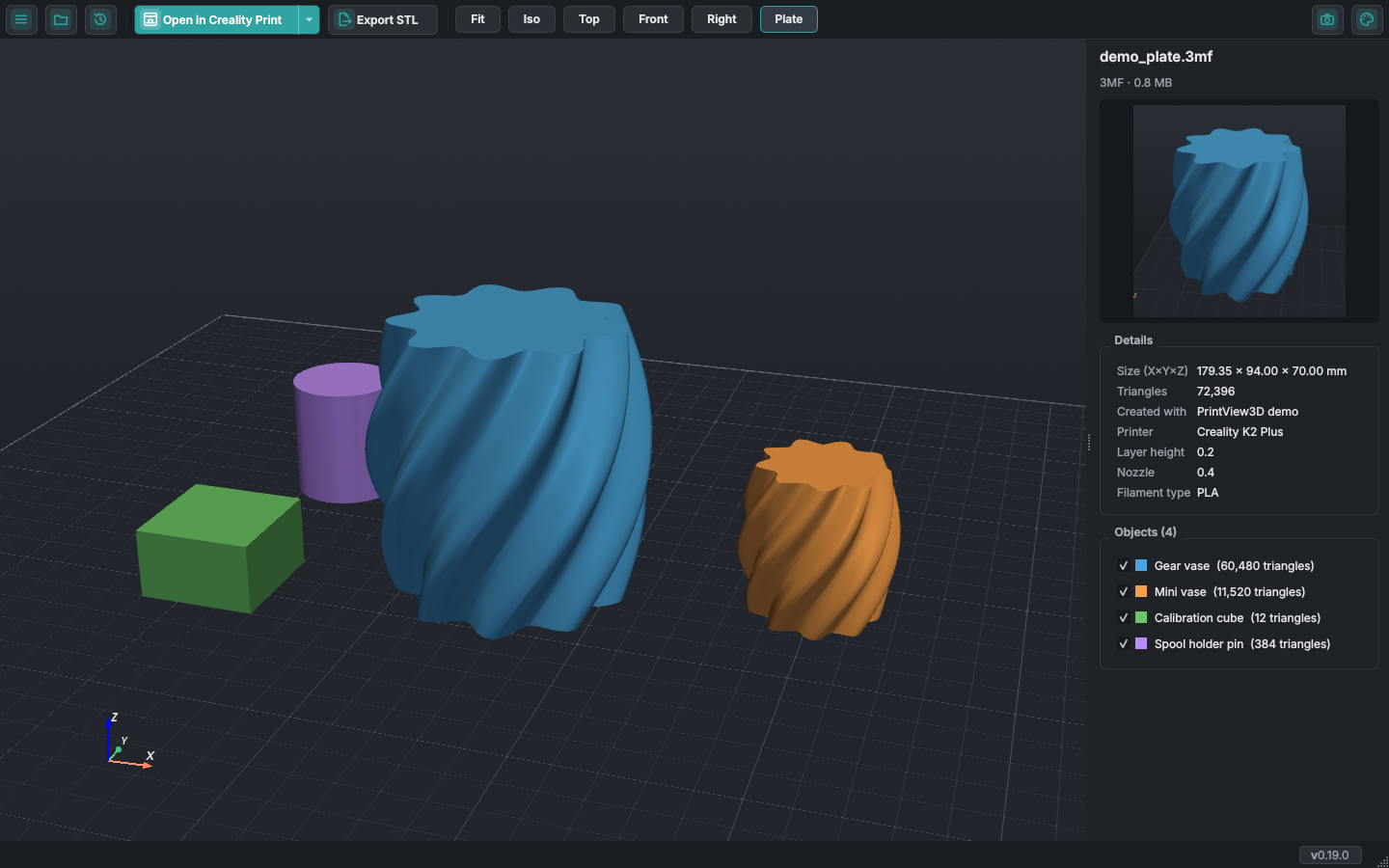 3MF project: every object listed, each can be hidden. |
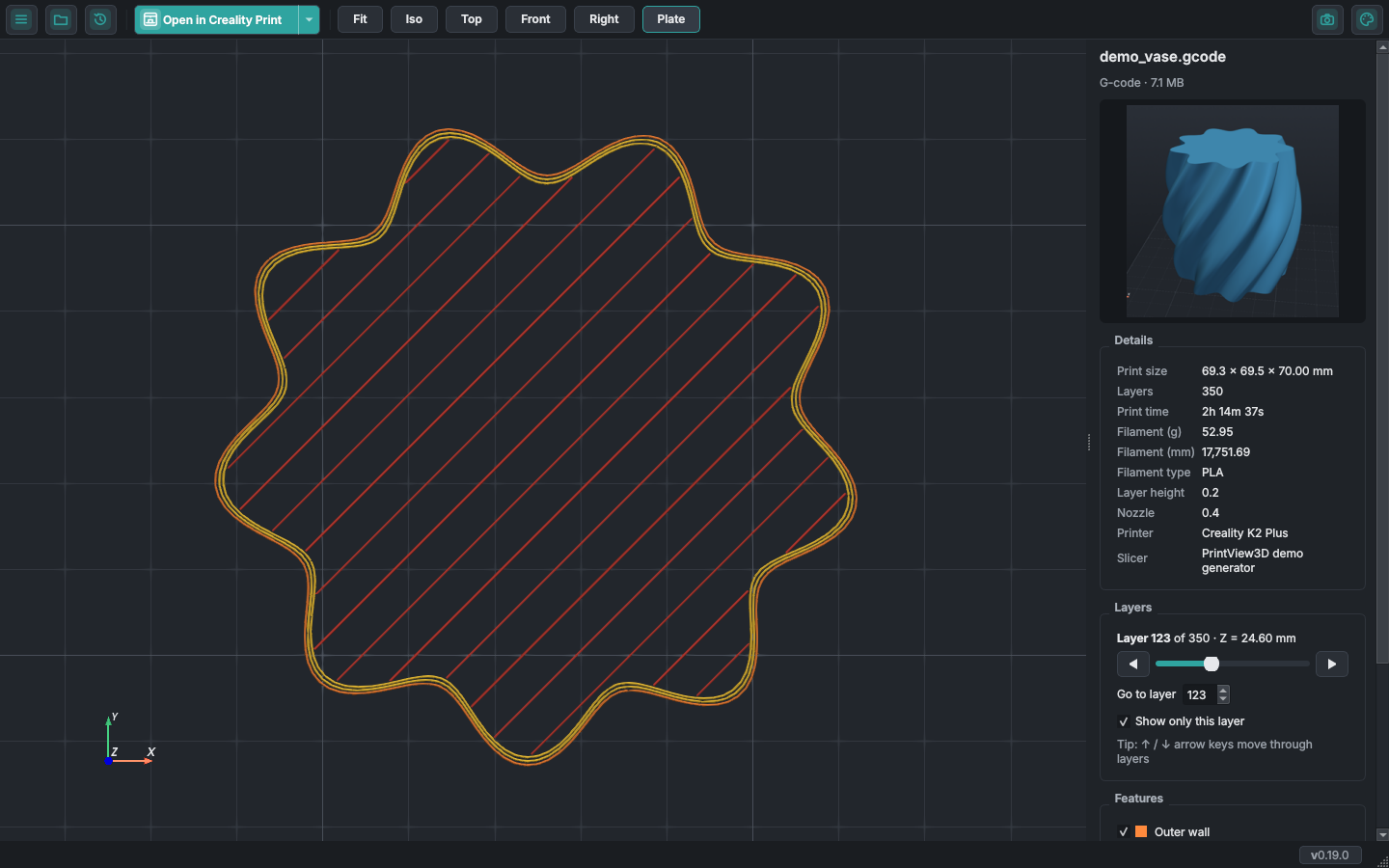 "Show only this layer": walls and infill of a single layer. |
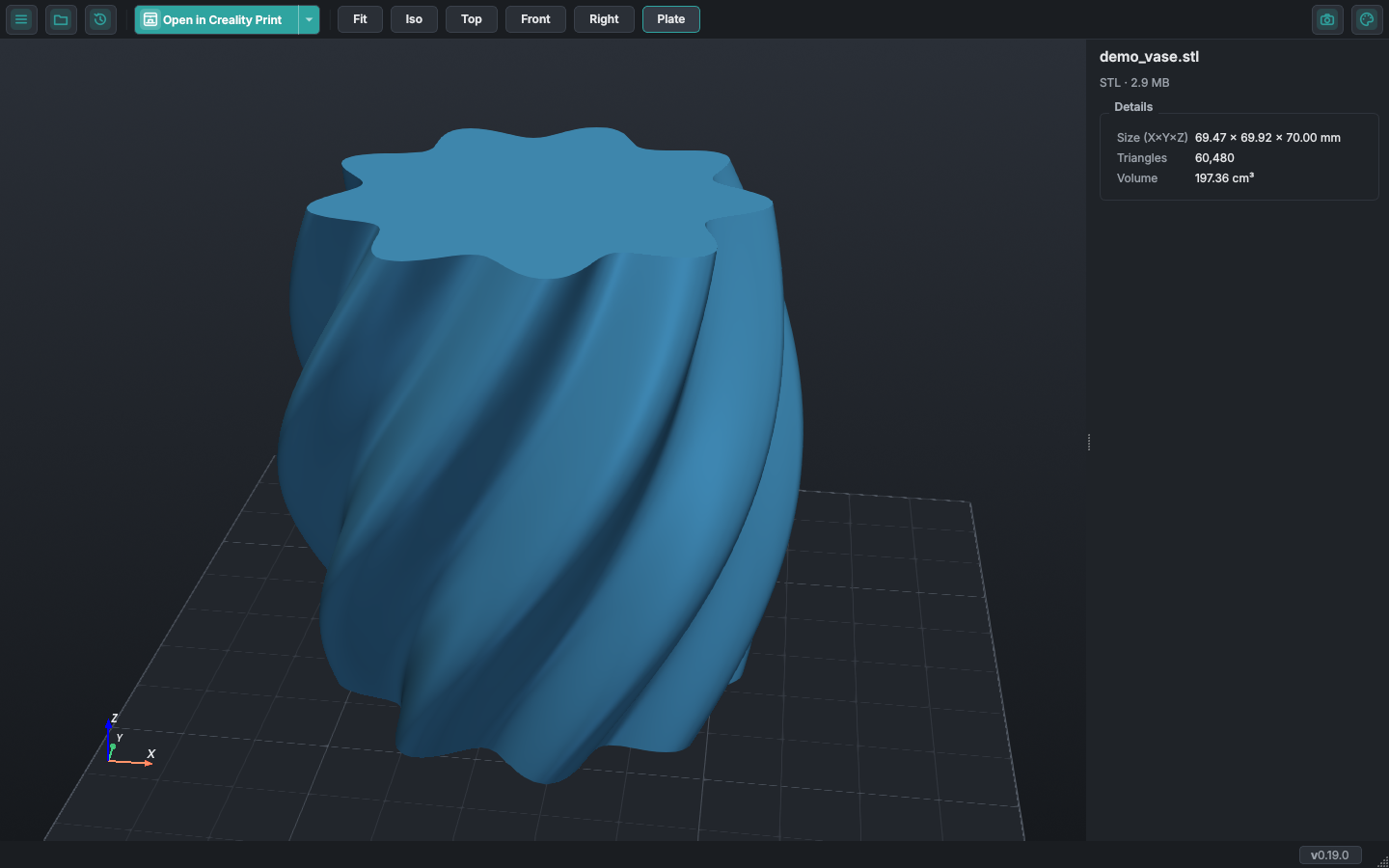 STL model with size and volume. |
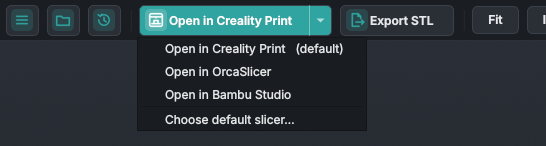 The ▾ arrow sends the file to another slicer just once. |
Supported slicers
Found automatically when installed:
Creality Print · OrcaSlicer · Bambu Studio · PrusaSlicer · UltiMaker Cura · Elegoo Slicer · Anycubic Slicer Next
Any other slicer works too: choose it as Custom in Settings.