FreeCAD, STEP and other formats
FreeCAD files
Open a FreeCAD document (.FCStd) with Open or drag & drop it onto the window
(PrintView3D does not take over the double-click from FreeCAD).
It is for looking only; nothing in the file is changed.
- With FreeCAD installed (free, freecad.org) the model is
shown in 3D as FreeCAD displays it: visible bodies and solids only, without sketches, hidden
objects or datum planes. PrintView3D starts FreeCAD invisibly in the background to convert the
shapes (a few seconds the first time; then it is remembered until the file changes).
The big button becomes Open in FreeCAD, and the ▾ arrow sends the visible model to
your slicer as an STL. Export STL (
Ctrl+E) saves the visible solids as STL files: all in one file, or one file per solid (the same choices as for a 3MF project). This also works for STEP files. - Without FreeCAD you see the file's preview picture, the FreeCAD version and the visible objects, with a button to download FreeCAD.
FreeCAD is found automatically in its usual places (Windows installer, Linux packages, Snap, Flatpak, AppImage). If yours is elsewhere, choose it in Settings → FreeCAD.
Because FreeCAD itself opens the file, a FreeCAD or STEP file deserves the same trust as when you open it in FreeCAD: open files from people and sites you trust.
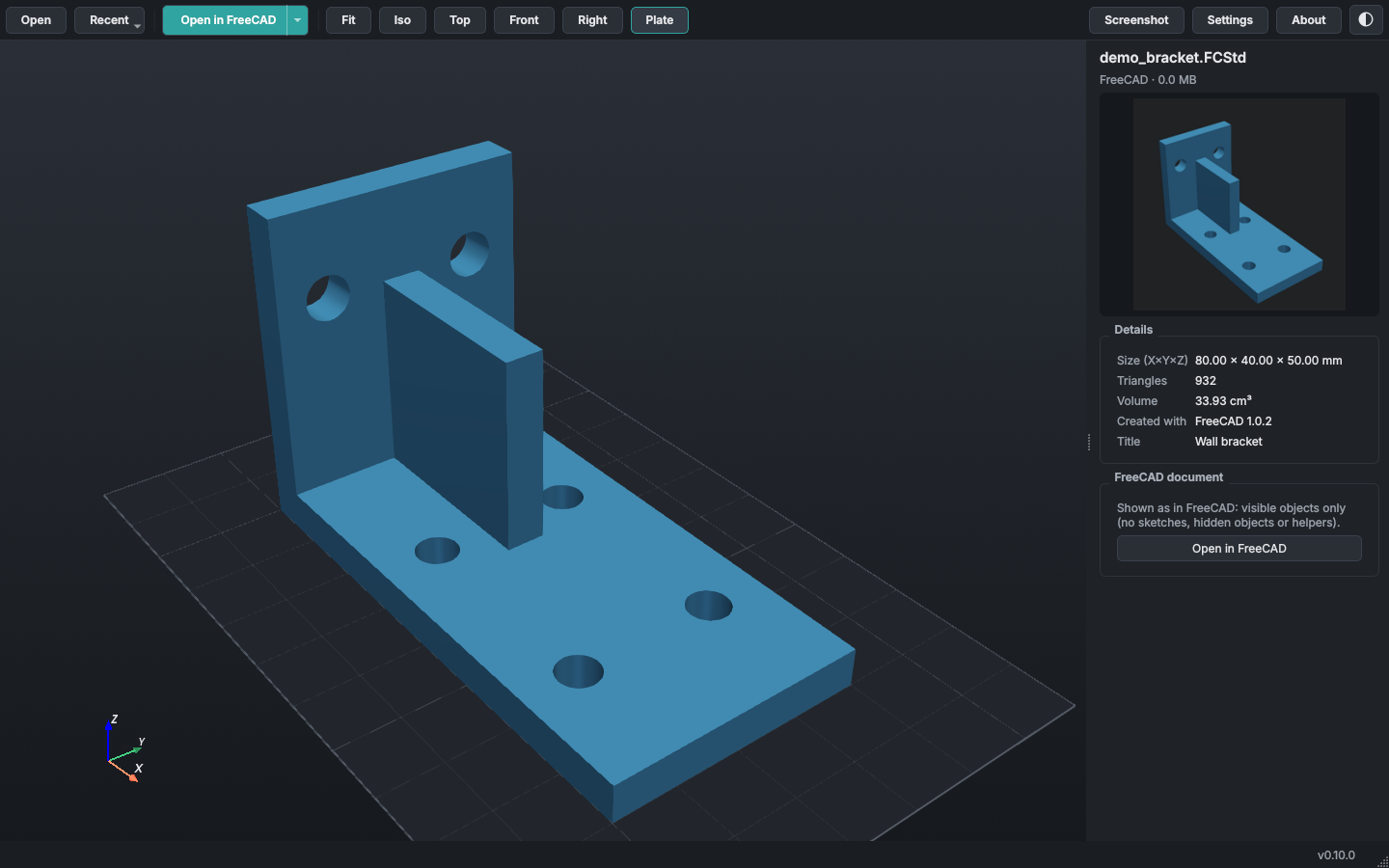 With FreeCAD installed: the bracket in 3D. |
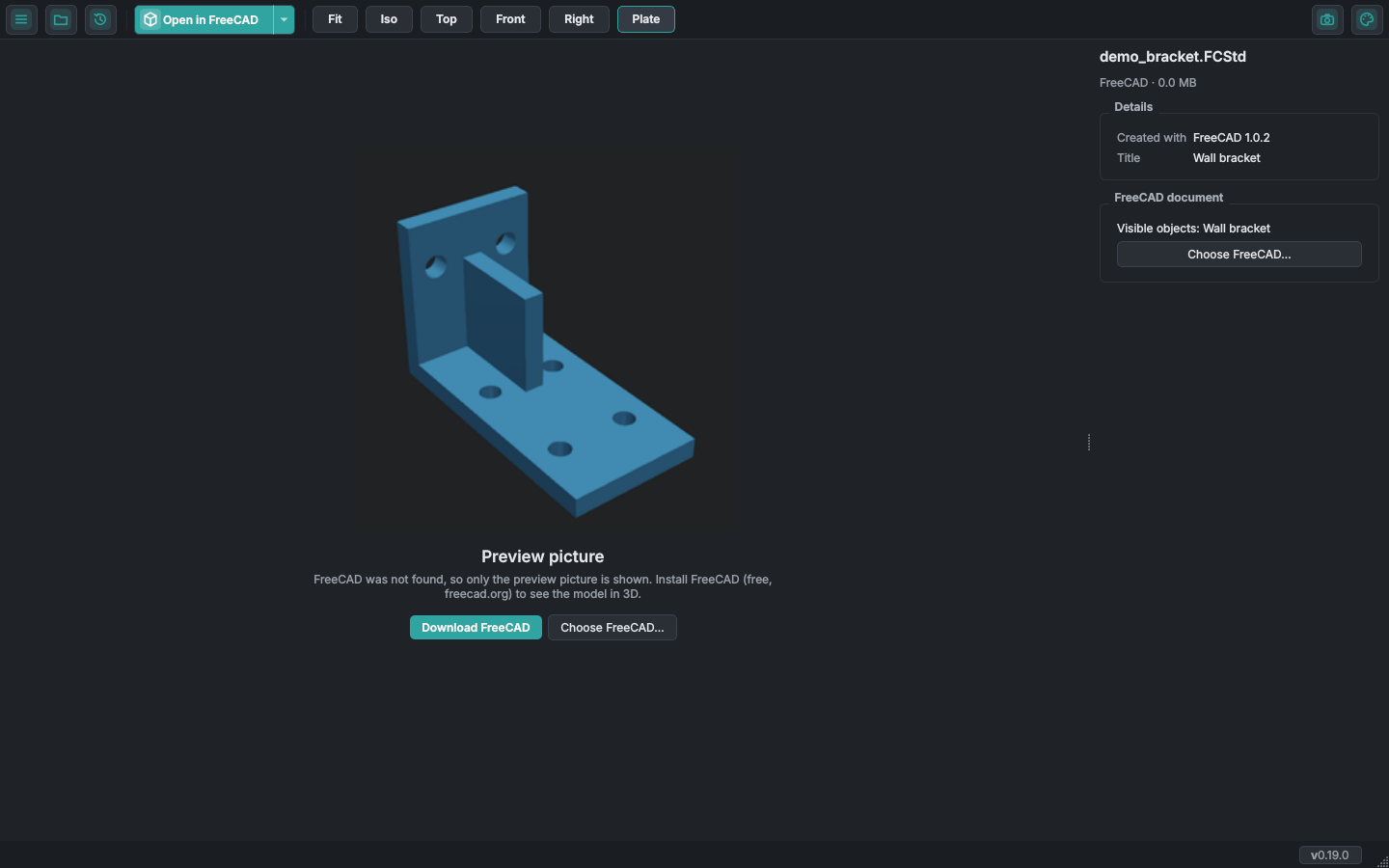 Without FreeCAD: the preview picture saved in the file. |
STEP files
STEP (.step, .stp) is the common format for exchanging CAD models between programs. It stores
exact shapes (curved surfaces), not triangles, so PrintView3D uses FreeCAD to turn them into a
mesh, the same way as for FreeCAD files: hidden in the background, a few seconds
the first time, then remembered until the file changes.
- Parts: an assembly's parts are listed separately with their names from the file, and can be hidden. (If FreeCAD's import gives anything unexpected, PrintView3D shows each solid instead, so the shape is always right.)
- Without FreeCAD you still see the details from the file (STEP version, the CAD program it was made with, author, organization, date) and a button to download FreeCAD.
- Send to slicer: OrcaSlicer, PrusaSlicer and Bambu Studio open STEP files themselves and get the file as it is (also without FreeCAD). Other slicers get the visible parts as STL, which needs FreeCAD.
- STEP files are added to Open with, but PrintView3D never makes itself their default app.
Other 3D formats
| Format | What is read | Sent to your slicer as |
|---|---|---|
OBJ (.obj) |
Objects (o) or groups (g) as separate objects; colours from the .mtl file next to it, or vertex colours. |
The .obj itself |
PLY (.ply) |
Text and binary; vertex or face colours. Point clouds (no faces) can't be shown. | STL |
OFF (.off) |
Text files (also COFF), with vertex or face colours. | STL |
glTF / GLB (.gltf, .glb) |
Every object in the scene at its position, with its material colour or vertex colours. | STL |
- Sizes: OBJ, PLY and OFF have no units; PrintView3D treats the numbers as millimetres, like slicers do. If a model shows up tiny, the file was probably made in metres; your slicer can scale it. glTF is always in metres and is shown in millimetres (with Z up, as on a printer).
- Not read: textures (image files on the model), animations, and glTF files compressed with Draco or meshoptimizer (PrintView3D says so; export them again without compression).
- These types are added to Open with, but PrintView3D never makes itself their default app.